Screen Builder Interface Version 2.0
COMPASS Version 6.2, 6.3, 6.4 © General Re Corporation 2021 - 2026. All Rights Reserved (created: 2026-05-08 generated: 2026-07-10)
This COMPASS documentation is protected by copyright law. All rights reserved, including translation into foreign languages. No part of this document may be reproduced or transmitted in any form or by any means, electronic or mechanical, for any purpose, without the express written permission of General Reinsurance AG.
© Copyright General Reinsurance AG, Cologne, 2019
Introduction
COMPASS comes with a screenbuilder protocol, allowing a client application to capture application information by displaying the screens in its own manner. This legacy protocol is called ScreenBuilder 1.0 protocol from now on.
On the current infrastructure a new protocol has been defined, whose major improvements are
-
allows grouping several screens into one
-
displays dependent questions right after the parent question
-
reacts right after every entry
-
questions and answers are displayed in a simple way
These advantages come at a price, e.g.
-
the client application has to send information to COMPASS after every interaction
-
not every electronic application form (
sourceType) can be adapted to this new format
The new protocol has been designed to cater for all these circumstances and more. It is simpler than SB 1.0, but also has a completely different structure. It is called ScreenBuilder 2.0 protocol.
Older COMPASS clients (i.e. Swing Screenbuilder Client, WebClient) do not work with the SB 2.0 protocol. COMPASS is now shipping the Touch Client and COMPASS CaseViewer that work with the SB 2.0 protocol. However, capturing clients can be developed by COMPASS customers using SB 2.0 with any common programming language.
For new integrations, we recommend the usage of the Screenbuilder 2.0 protocol. However, before deciding to migrate Screenbuilder 1.0 screens to Screenbuilder 2.0 protocol to develop a capturing client, you should check with your underwriting department and your partner at Gen Re if ScreenBuilder 1.0 is not sufficient, as it already comes with a variety of clients that can be adapted to match your needs.
| This document describes the interface mainly in XML. You may, however, also use JSON, but there are slight differences regarding data types and naming, which are explained in detail in this document: XML vs JSON - differences |
Concepts used in COMPASS
Screen Builder client vs. COMPASS Screen Builder client
COMPASS 6 is built using a service architecture (HTTP REST). Only a client can communicate with COMPASS. A client that is used to record/capture data via a communication with COMPASS is called a Screen Builder Client. COMPASS will pass screen descriptions, which are visualised by the Screen Builder client, and it expects the answers to those questions as a response from the Screen Builder Client.
When COMPASS runs in Screen Builder mode, this means that a Screen Builder Client is communicating in the above-described way with COMPASS. COMPASS offers a Screen Builder 1.0 Client, which is called in this document COMPASS Screen Builder client. It exists for the communication via RMI only.
Apart from this, COMPASS also offers COMPASS Touch (which supports Screenbuilder 2.0 protocol only) and COMPASS CaseViewer, which supports both protocols Screenbuilder 1.0 and Screenbuilder 2.0.
A customer that decides to run in Screen Builder mode may build its own Screen Builder Client. This means the client will build and display screens based on the screen description, evaluate the given answers, and communicate with COMPASS.
Elements on screens
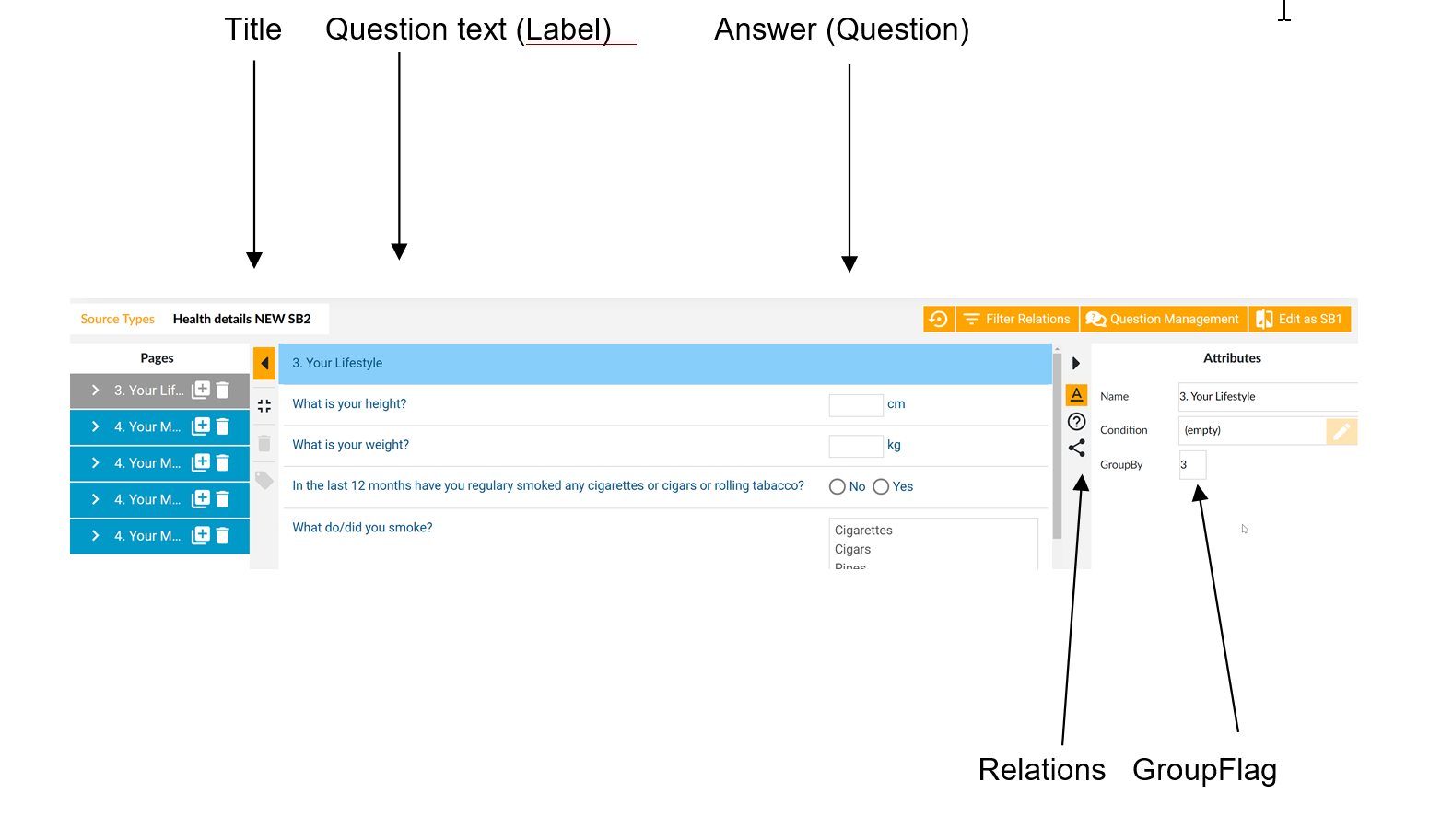
Navigation between screens / contexts is done directly via clicks on the corresponding context (named page in the SB2-Editor).
The relation buttons (new, edit, delete, relate and unrelate) have been converted into commands, and their visualisation is the responsibility of the customer. Sample visualisations can be found in Compass Touch, CaseViewer or in the CaseViewerApp
The layout concept of SB 2.0
The layout is defined with help of the User-Interface-editor coming with the NG RuleManager.
When defining a screen in SB 2.0 format, there are no positions on the screen, but a simple sequence of questions, whereas each question consists of a label (question text) and an answer. COMPASS uses heuristics to define the sequence. This is not always the intended sequence, but there is no correct way of converting a complex and nested screen into a sequential one. Keep your screens simple, and you will get the desired sequence.
Information from sub-screens, as created by relations (e.g. details about a disorder), are marked as such, and can be displayed by the screenbuilder program in a different way, e.g. indented.
The grouping of single screens
The SB 2.0 protocol will group screens from a sourceType, together with possible POS-screens used to capture details for disorders, pursuits, trips and occupations.
The sourceType should not contain screens of the application context, but only screens from person’s contexts and sub-contexts. Each screen needs a group flag, and those with the same group flag, and for the same person, will be merged into one screen. I.e. we will have one screen per group flag and per person.
Additionally there are POS screens that cannot be marked by a group flag. They are included if triggered by a screen with the currently valid group flag.
Summarising:
The sourceType will be first divided into one section per person. This section is divided into as many groups, as there are different group flags in the sourceType. Each group will display one merged screen that is built based on the original screens and the triggered POS screens.
The screen and userAction XML-Elements
Your Screen Builder program will communicate with COMPASS. COMPASS will send response XML-elements containing screen descriptions, named screen in the XML structure. The Screen Builder client will answer with a request containing a userAction XML-element. These two elements, screen and userAction, are described in detail in the following subchapters.
Some example screens are shown in Examples for visualisation, the data model for the screen and the DTD are described in the chapter DTD.
Please refer to the APIs Overview for more details about the request and response elements.
The screen Element
screen
screen is the basic element describing a structure that allows you to navigate between screens, and which describes the current screen with all its questions. Therefore it contains all objects that have to be displayed. It consists of at least one person (see person)
<!ELEMENT screen (person+)>person
person is the element describing all questions for one particular person. It contains one item (see item) for each context of questions to be asked.
<!ELEMENT person (item+)>
<!ATTLIST person
    personName CDATA ""
    personID CDATA ""
    orientation (LTR | RTL) "LTR">
The XML object person has the following attributes:
| field | type |
|---|---|
personName |
String - name of the person. The |
personID |
String - an id for the |
orientation |
String - direction of the texts; e.g. Arabic and Hebrew are RTL (right to left). Most other languages are LTR. Help for the display of |
Example
<screen>
	<person personID="4711" personName="Mister ABC" orientation="RTL">
        ...
    </person>
</screen>
item
For a person there are as many items as there are contexts with questions to be answered. Every item contains the questions of a specific context, which was defined by the group-flag in the UI-Editor. There is one item that should be displayed with all its questions, while the other items are used only for navigation between the contexts.
An item has a name that should be displayed, so the user knows to which context he is moving. The current item contains a list of questions and relations that should be displayed.
<!ELEMENT item ((question|relation)*)>
<!ATTLIST item
    current (true | false) #IMPLIED
    id CDATA #REQUIRED
    name CDATA #REQUIRED
    group CDATA #IMPLIED
    personName CDATA ""
    personID CDATA ""
    order CDATA #REQUIRED
    consistent (true | false) #IMPLIED>
The XML object item has the following attributes:
| field | type |
|---|---|
current |
String - (true|false) Flag, telling the screen-builder that this |
id |
String - id of a |
name |
String - The name of the context to be displayed to the user |
group |
String - Identifier of the group-flag as defined in the UI-editor. Can be used to create icons for specific contexts |
personName |
String - this attribute contains the same value as the XML-element |
personID |
String - This attribute contains the same value as the XML-element |
order |
Integer - This attribute contains numbers, which allow to place contexts in an order as defined in the UI-Editor. For one |
consistent |
String (true|false) - This attribute described the current state of |
Example
<item current="true"
    personName="asdsad"
    personID=”4711”
    consistent="true"
    order="1"
    id="_100"
    name="Beruf asdsad"
    group="X_1">
	<question id="X_1#_100#200_995_209"
        order="1"/>
</item>
question
Every question is composed of a question text and an answer field. Both elements are grouped in a question. Therefore it can contain one of the following input-elements: textInput (see textInput), numberInput (see numberInput), dateInput (see dateInput), or a selection (see selection). Additionally it can contain a text element (see text). If no text is included, the question has no question text; when no input element is included, the text can be considered a title for the following questions.
<!ELEMENT question ((textInput | numberInput | dateInput | selection)?, text?)>
<!ATTLIST question
       id CDATA #REQUIRED
       order CDATA #REQUIRED
       toolTip CDATA #IMPLIED
       errorToolTip CDATA #IMPLIED
       catyID CDATA #IMPLIED
       cotyID CDATA #IMPLIED>
The XML object question has the following attributes:
| field | type |
|---|---|
id |
String - Usually the id of the CaseAttributeType, therefore may not be unique within an |
order |
Integer - This attribute contains numbers, which allow to place |
catyID |
Integer - This attribute contains the id of the CaseAttributeType of the input-field in this |
cotyID |
Integer - This attribute contains the id of the CaseObjectType belonging to the input-field in this |
toolTip |
String - A help-text or message that is appropriate for this |
errorToolTip |
String - A text that should be displayed if the |
Example
<question id="X_1#_100#200_995_209"
          catyID="209"
          cotyID="27"
          order="1"
          toolTip="helptext for occupation">
	<textInput mandatory="true"
	           id="209"
	           rows="1"
	           editable="true"
	           error="false"
	           searchable="2139"
	           language="en">
		<value id="2309"
		       value="actuary "/>
	</textInput>
	<text text="Which is your occupation?"
	      error="false"/>
</question>
text
The XML object text describes a label (text) of the screen.
<!ELEMENT text EMPTY>
<!ATTLIST text
    text CDATA #REQUIRED
    error (true | false) "false">
The XML object text has the following attributes:
| field | type |
|---|---|
text |
String The text that should be displayed. |
error |
String (true|false) |
Example
<text text="What is your height?" error="false"></text>relation
Context changes (see Concepts used in COMPASS) are most often used to denote relations like “person has disorder”, “person is travelling to”, etc. This is not just one question, as the person can travel to several destinations, or suffer from several disorders. For each disorder, trip, pursuit, etc, a relationElement will be included in the corresponding relation element. The user has to be able to add new relationElements ( addCommand), to delete existing relationElements ( deleteCommand), and to relate existing elements to another relation. We will describe more in detail what situation can exist, and how they are represented in the SB 2.0.
Most relations allow the adding of more elements (a further trip, another pursuit). For this purpose most relations include a question with a field that allows the input of a new entry, or the selection of an existing entry.
As such, a relation can contain the following XML objects: a text (see text), a textInput (see textInput), a selection (see selection) and any number of relationElements (see relationElement).
<!ELEMENT relation (text?, textInput?, selection?, relationElement*)>
<!ATTLIST relation
    addCommand CDATA #IMPLIED
    deleteCommand CDATA #IMPLIED
    relateCommand CDATA #IMPLIED
    id CDATA #REQUIRED
    order CDATA #REQUIRED
    type CDATA (doctor | relate) #IMPLIED
    toolTip CDATA #IMPLIED
    errorToolTip CDATA #IMPLIED>
The XML object relation has the following attributes:
| field | type |
|---|---|
id |
String - Usually the id of the CaseAttributeType, therefore may not be unique within an |
order |
Integer - This attribute contains numbers, which allow placing |
type |
String (doctor | relate) - not a mandatory attribute. If it exists and contains the doctor or relate |
addCommand |
String - An identifier that should be used in the |
relateCommand |
String - An identifier that should be used in the |
deleteCommand |
String - An identifier that should be used in the |
toolTip |
String - A help-text or message that is appropriate for this |
errorToolTip |
String - A message that should be displayed for the entry field of this |
Example
<relation addCommand="1003_24147#101" id="X_2#_110#200_1003" deleteCommand="1003_24147#103" order="2">
	<text text="Please indicate your pursuits:" error="false"/>
	<textInput mandatory="false" id="X_2#_110#200_1003_163" rows="1" editable="true" error="false" searchable="2108">
		<value id="2316" value=""/>
	</textInput>
	<relationElement id="Pursuit Golf_206" value="Pursuit Golf">…</relationElement>
</relation>
relationElement
A relationElement groups questions and relations in a similar way to an item. Additionally, it contains a text that is the identifier for this element.
Thus the XML object relationElement contains the following XML objects: Possibly a text (see text) and any number of questions (see question) and relations (see relation). The text-Element contains the name of the id-CaseAttribute-value.
<!ELEMENT relationElement (text?, (question | relation)*)>
<!ATTLIST relationElement
    id CDATA #REQUIRED
    value CDATA #REQUIRED
    consistent (true | false) #IMPLIED
    lastPOSScreen CDATA #IMPLIED
    isCancelled (true | false) "false">
The XML object relationElement has the following attributes:
| field | type |
|---|---|
id |
String - Internal id of the current element. It is used in a |
value |
String - A more readable format of the id attribute. |
consistent |
String -This field is set to true, if all mandatory |
lastPOSScreen |
String - This field only contains a value, if the dialogue for this |
isCancelled |
String - This field is only set to true, if the POS-dialogue for this |
Example
<relationElement id="Pursuit Golf_206"
                 value="Pursuit Golf"
                 consistent="true">
	<text text="Pursuit Golf"/>
	<question id="X_2#_111#206_240"
	          order="1">
    ...
    </question>
	...
</relationElement>
textInput
The XML object textInput is used for recording of textual input; it can contain a value . A textInput should be displayed as a text-input field. This field should display the value, if a value has been passed.
Example
<!ELEMENT textInput (value)>
<!ATTLIST textInput
    id CDATA #REQUIRED
    rows CDATA "1"
    editable (true \| false) "true"
    error (true \| false) "false"
    mandatory (true \| false) "false"
    searchable CDATA #IMPLIED
    minLength CDATA #IMPLIED
    maxLength CDATA #IMPLIED
    language CDATA #IMPLIED>
The XML object textInput has the following attributes:
| field | type |
|---|---|
id |
String - Usually the id of the CaseAttributeType, therefore may not be unique within an |
rows |
Integer - Height of the input field in number of rows. Often text is recorded with height 1. Otherwise it becomes a multiline input field |
editable |
String - (true|false) Indicates whether the input field is editable or not, it is editable if true, else not |
error |
String - (true|false) In case of wrong user input in this field COMPASS sets this attribute to true. |
mandatory |
String - (true|false) This attribute is true, if the |
searchable |
Integer - This attribute is only found for certain text input fields. The value corresponds to a database id, so that a search for terms in a database list is possible. E.g. the value 2139 stands for “search in the occupation list”. |
language |
Integer This attribute is only found when searchable is present. It contains the language in which to search. E.g. the value fr stands for “search in French”. |
minLength |
Integer - Minimum length for a text in this field. Rarely something other than 0. |
maxLength |
Integer - Maximum length for a text in this field. The value can be used to check a text without communicating with COMPASS. |
Example
<textInput mandatory="false"
           id="251"
           rows="1"
           error="false"
           editable="true"
           minLength="0"
           maxLength="30">
	<value id="1159"
	       value="as"/>
</textInput>
value
The values of textual (see textInput), numerical (see numberInput), date (see dateInput) and selection (see selection) fields are recorded as value or an array of value - elements in the Screen Builder interface.
For a selection there can be several values, as they represent the possible selection-values. For all other types of input-fields maximal one value is allowed.
<!ELEMENT value EMPTY>
<!ATTLIST value
    id CDATA #REQUIRED
    value CDATA #REQUIRED
    selected (true | false) "false">
The XML object value has the following attributes:
| field | type |
|---|---|
id |
String - Usually the id of the CaseAttributeType, therefore may not be unique within an |
value |
String - The actual value is a string in the screen builder interface; unknown |
selected |
String - (true|false) - The |
Example (of values in a selection)
<selection mandatory="true"
           id="204"
           editable="true"
           name="Disorders, illnesses, etc. (y/n)"
           error="false">
	<value id="1"
	       selected="true"
	       value="yes"/>
	<value id="0"
	       value="no"/>
</selection>
numberInput
Numerical input is recorded via a numberInput element. The XML object numberInput can have a value and one or more units (see unit). A numberInput should be displayed as a text-Input or number-Input field. This field should display the value, if a value has been passed.
<!ELEMENT numberInput (value, unit*)>
<!ATTLIST numberInput
    id CDATA #REQUIRED
    editable (true | false) "true"
    error (true | false) "false"
    mandatory (true | false) "false"
    dualType (true | false) "false"
    aggregateType (true | false) "false"
    minVal CDATA #IMPLIED
    maxVal CDATA #IMPLIED
    maxNumberDecimals CDATA #IMPLIED>
The XML object numberInput has the following attributes:
| field | type |
|---|---|
id |
String - Usually the id of the CaseAttributeType, therefore may not be unique within an |
editable |
String (true|false) - Indicates whether the input field is editable or not; it is editable if true, else not. |
error |
String (true|false) - In case of wrong user input in this field COMPASS sets this attribute to true. |
mandatory |
String (true|false) - This attribute is true, if the |
minVal |
Integer - Minimum value for a number in this field. The value can be used to check the |
maxVal |
Integer - Maximum value for a number in this field. The value can be used to check the |
maxNumberDecimals |
Integer - Maximum number of decimals for a number in this field. The value can be used to check the number without communicating with COMPASS. |
dualType |
String (true|false) - Only if this attribute is passed and is true, the display of this field should be done in a special way. Currently it is only used for the input of the pair of blood pressure values. For dual |
aggregateType |
String (true|false) - Only if this attribute is passed and is true, the display of this field should be done in a special way. It is currently only used for the input of height and/or weight, when these fields allow the imperial For aggregate The screenbuilder program should make sure that these |
Example
<numberInput maxVal="300"
             mandatory="true"
             id="158"
             maxNumberDecimals="0"
             minVal="1"
             error="false"
             editable="true">
	<value id="1293"
	       value="2"/>
	<unit id="13"
	      name="cm"/>
</numberInput>
unit
One or more units can be matched to each numberInput (see numberInput) or dateInput (see dateInput). The XML object unit is used to represent each of these units.
Should there be more than one unit, then the first one is the selected unit.
<!ELEMENT unit ()>
<!ATTLIST unit
    id CDATA #REQUIRED
    name CDATA #REQUIRED>
The XML object unit has the following attributes:
| field | type |
|---|---|
id |
String - Usually the id of the CaseAttributeType, therefore may not be unique within an |
name |
String - Name of the |
Example
See example in numberInput
dateInput
The XML object dateInput is used for capturing dates and periods. Dates can consist of a day, month and year, or only month and year, or only a year. When a question expects a date for an answer, in the NG RuleManager it is possible to specify whether the date (or a period) should be displayed separately. SB 2.0 will not separate this field, but leaves this task to the screen builder 2.0 program.
A dateInput can have a value (see value), which contains the date/period. For a date the syntax of the value is
dd.mm.yyyy where each of the three parts can be replaced by question marks, if unknown. E.g. 13.??.2012.
For periods, the syntax of the value is
beginDate;endDate;nn;unit
where beginDate and endDate apply to the syntax described in the previous paragraph, whereas nn and unit are used to describe the duration in the following pattern: nn is a numeric value, and unit is the id of the chosen unit. E.g. 31.??.2012;??.??.????;2;2 or 31.12.2010;??.??.2012;?;? when the duration is unknown.
When a period is required, the four possible units (day/week/month/year) are passed as 4 unit XML-elements.
<!ELEMENT dateInput (value, unit*)>
<!ATTLIST dateInput
    id CDATA #REQUIRED
    editable (true | false) "true"
    error (true | false) "false"
    mandatory (true | false) "false"
    display (Y|MY|DMY) "DMY">
The XML object dateInput has the following attributes:
| field | type |
|---|---|
id |
String - Usually the id of the CaseAttributeType, therefore may not be unique within an |
editable |
String (true|false) - Indication whether the date or period can be modified. A |
error |
String (true|false) - In case of wrong user input COMPASS sets the attribute to true. |
mandatory |
String (true|false) - This attribute is true, if the |
display |
String (DMY | MY | Y) Tells the ScreenBuilder whether to capture only the year (Y), year and month (MY), or day, month and year (DMY). Default is to capture day, month and year. |
selection
This is the most common input-element of COMPASS. It requires not a textual input, but a selection from predefined values. E.g. this can be the selection of Yes or No. Most commonly a selection is displayed as radio buttons, a list box, or as a combo-box. If it allows a multiple selection, then a list box is the preferred widget. Feel free to use any other widget that suits the desired purpose.
The XML object selection has several values (see value ).
<!ELEMENT selection (value*)>
<!ATTLIST selection
    id CDATA #REQUIRED
    name CDATA "default selection name"
    multiple (true | false) "false"
    editable (true | false) "false"
    error (true | false) "false"
    mandatory (true | false) "false">
The XML object selection has the following attributes:
| field | type |
|---|---|
id |
String - Usually the id of the CaseAttributeType, therefore may not be unique within an |
name |
String - Name of |
multiple |
String (true|false) - Several entries can be selected if true. |
editable |
String (true|false) - Indication whether the |
error |
String (true|false) - In case of wrong user |
mandatory |
String (true|false) - This attribute is true, if the |
Example
<selection multiple="true"
           mandatory="false"
           id="100000540 "
           name="unspecific asthma"
           error="false"
           editable="true">
	<value id="1007"
	       selected="true"
	       value="allergic asthma "/>
	<value id="1003"
	       value="occupational asthma "/>
		   [ ... ]
	<value id="unknown"
	       value="other"/>
</selection>
The userAction element
An userAction is a XML object that has to be sent to COMPASS when either:
-
navigationbetweenitemsis requested, -
a
selectionchanged -
a
text,dateornumberchanged and the focus has left the field -
the capturing has ended
It can also be a combination of these items. The structure of the userAction with its sub-objects is explained in this chapter.
The structure is very similar to the SB 1.0 userAction. The main difference being that only one answer may be passed.
userAction
When the Screen Builder client sends a userAction to COMPASS, COMPASS needs to know:
-
Which
itemhas been selected to allow navigation between contexts, and -
Which
questionson thescreenchanged itsvalue(e.g. a number recorded for the height-question; a list of selectedvaluesof aselection, etc.)
Thus the XML object userAction can contain an answer-element (see answer ) and two attributes describing the triggering action or item.
Example
<!ELEMENT userAction (answer)?>
<!ATTLIST userAction
    screenID CDATA #REQUIRED
    screenCommand CDATA #REQUIRED>
The XML object userAction has the following attributes:
| field | type |
|---|---|
screenID |
String - This attribute should contain the id of the current |
screenCommand |
String - This attribute contains the id of the |
Examples:
Answer question with id "X_3#_102#200_204" on screen with id "_101" and send the value "yes":
<userAction screenID="_101"
            screenCommand="_101">
	<answer question="X_3#_102#200_204">
		<value id="1"
		       value="yes"/>
	</answer>
</userAction>
Finish capturing (see Further userActions)
<userAction screenID="_101" screenCommand="#4"></userAction>answer
An answer to a question is stored in the XML-object answer. Each answer object is related to a specific question, and contains the value of the answer to this question. For questions expecting a textual-, numerical- or date-answer, only one value is expected. For selections (namely multiple selections) more than one answer is possible. Thus the answer object can contain any number of value (see value ) objects.
<!ELEMENT answer (value)*>
<!ATTLIST answer
    question CDATA #REQUIRED>
The XML object answer has the following attribute:
| field | type |
|---|---|
question |
String - This attribute should contain the |
Example
See example in chapter userAction.
value
The XML object value contains the actual value, as specified for a specific question on the screen. We have to distinguish here between two types of questions:
First those questions that expect a textual input (textInput, numberInput, dateInput): they have only one value, which is defined by the textual input (attribute value) and a possible unit (attribute unit) (unit only if question is of type numberInput). They might also contain the id-attribute, but this attribute is ignored by COMPASS.
questions represented by a selection: They can have several values, each of which is denoted by its id as defined in the values of the selection. This id is represented in the value element also by the attribute id. The value might also contain the id-attribute, but COMPASS ignores this attribute.
<!ELEMENT value EMPTY>
<!ATTLIST value
    id CDATA #IMPLIED
    value CDATA #IMPLIED
    unit CDATA #IMPLIED>
The XML object value contains the following attribute:
| field | type |
|---|---|
id |
String - This attribute has to be filled, if the related input field is a |
value |
String - This attribute contains the textual input for this field as a string. In case of a |
unit |
String - This attribute is only filled, when the selected or input |
Examples
Answer to a selection:
<answer question="X_3#_102#200_204">
    <value id="1" value="yes"></value>
</answer>
Answer to a numberInput with a unit:
<answer question="X_3#_101#200_36">
    <value id="1294" value="78" unit="6"></value>
</answer>
Answer to a dateInput with a unit:
<answer question="X_3#_106#206_9">
    <value id="DurationValue_9" value="??.2.2013;??.??.??;3;5"></value>
</answer>
No answer given to a selection:
<answer question="_75"></answer>No answer to a numberInput:
<answer question="_17">
    <value id="316" value="" unit="16"></value>
</answer>
Building the ScreenBuilder-Client
In this chapter we assume that the connection using the capture Service to COMPASS is established. Please refer to the document Service Rest APIs for details about the REST API or the communication with COMPASS.
A Screen Builder client will have to start sending a request to COMPASS. In order to get back a screen description, the request should be an operation of type capture, or view, where the most common one will be capture. An example of such a request can be found in Starting the Screenbuilder 2.0 cycle. COMPASS will answer with a response element. This response can contain either an operationResult (see COMPASS response is an operationResult) or a screen (see COMPASS response is a screen). In the second case the screen has to be visualised by the Screen Builder client (see Transforming the screen into a screen). Assuming the user has made some input on the visualised screen, the Screen Builder Client has to extract the new or modified information from the screen, and put it into a userAction (see Processing user input) . This userAction has to be sent COMPASS, and the client then waits for the next response from COMPASS.
COMPASS and Screen Builder client will send each other userActions and screens, until COMPASS sends an operationResult. Now the Screen Builder Client has to react differently, but depending on the planned workflow and the returnCode of the operationResult: e.g. if the returnCode is 0, the captured case can be assessed.
The chapter Design recommendations for screens in the UI editor includes some recommendations for the design of screens with the NG RuleManager: The simpler the screen definition, the easier the visualisation of the screen.
Starting the ScreenBuilder 2.0 cycle
To start the cycle of screen → userAction → screen → userAction … the client has to send a request containing an operation of type capture. The difference to SB 1.0 is the inclusion of the attribute groupScreens="true".
Example
Capturing the risk data
(Source-type 101) of the case Case1, technical data already exists:
<?xml version="1.0" encoding="ISO-8859-1" standalone="yes"?>
<request>
    <operation>
        <capture sourceType=”101” loggingArea=”0” groupScreens="true" language=”en” >
            <caseSourceReference>
                <databaseReference id=”Case01” subId=”TEST”>
                </databaseReference>
            </caseSourceReference>
            <caseDestinationReference>
                <databaseReference id=”Case01” subId=”TEST”>
                </databaseReference>
            </caseDestinationReference>
        </capture>
    </operation>
</request>
COMPASS response is a screen
The COMPASS receives the request, processes the defined operations, and sends back a response, which in our case contains a screen or an operationResult with returnCode 0. In this chapter we focus on the response containing a screen.
As the response contains a screen, it can be assumed that the request sent to COMPASS could be processed without a problem.
Example
The screen contains at least one person, which again contains items. The current item shows questions, and has been abbreviated in this example:
<?xml version="1.0" encoding="Unicode" standalone="no"?>
<response>
    <screen>
        <person personName="Mr. X" personID=”4711”>
            <item   current="true" personName="Mr. X" consistent="true" order="1"
                    id="_100" name="Occupation Mr. X" group="X_1" personID=”4711”>
                    <question   id="X_1#_100#200_995_209"
                                order="1" toolTip="Occ Helptext">
                                <textInput  mandatory="true" id="209" rows="1"
                                            editable="true" error="false" searchable="2139" language="en">
                                            <value id="2309" value="Actuary"></value>
                                </textInput>
                                <text text="What is your occupation?" error="false"></text>
                    </question>

...

            </item>

            <item   current="false" personName="Mr. X" consistent="true" order="2"
                    id="_101" name="Health data Mr. X" group="X_3"
                    personID=”4711”></item>
            <item   current="false" personName="Mr. X" consistent="true" order="3"
                    id="_106" name="Pursuits Mr. X" group="X_2"
                    personID=”4711”></item>
            <item   current="false" personName="Mr. X" consistent="true" order="4"
                    id="_107" name="Foreign travels Mr. X" group="X_4"
                    personID=”4711”></item>
        </person>
    </screen>
</response>
Continue visualising all elements. This should be done step by step, as specified in Transforming the screen description into a screen.
Transforming the screen description into a screen
The passed screen contains a complete description of the questions and relations to be displayed for the current context (i.e. the item with current="true"). Its questions and relations should be placed sequentially on the screen following the order- attribute.
Building the screen: elements outside of the context
The screen contains questions for one or more persons. For each person there are a set of items that correspond to the different contexts. One of the contexts is the current one, and should be displayed with all its content. This part will be presented in subsequent chapters.
First thing is to define a user interface that allows the display of all contexts, perhaps grouped by person, and to leave space for the display of the current context. The user should be able to change from one context to another, and this involves also the ability to change from one context of one person, to another context of another person. Please refer to section The navigation via items to see how this was done in the COMPASS Touch client.
Each item/context has a name that can be displayed, an order, so the different contexts can be presented in the order defined in the UI-editor, and it contains a flag saying whether all mandatory questions have been answered. The COMPASS Touch client makes use of the group-flag, linked to a specific icon for the context. The icons have been designed to show the status of the current context:
Unresolved medical questions (see question mark):

All travelling questions answered (see check mark):

A client is free to define further elements on the screen. Certain COMPASS actions could be placed on a button row: Save current state, terminate the capturing process, etc.
The Screen Builder client should save all id-attributes of the involved items. They will be used later, when the userAction is built.
Building the screen: the current context
In a larger portion of the screen there has to be place to display all the questions of the current context. The SB 2.0 protocol is based on a simple assumption:
Every answer can have a question text. This pair (answer and text) are grouped in a question element, and there is a simple order on the set of questions. This allows you to place the questions sequentially on the screen; e.g. question text left – answer widget right. Every new question is presented in another line.
We will see how to present the question text and the widgets in further chapters (see Examples for visualization – COMPASS Touch). At this point it is worth introducing the relations, as they are a more complex element than a question.
In the sequence of questions you will find relations as well. A relation comes in different types, but the basic idea behind it is: it allows the textual input of disorders, pursuits, countries, drugs, doctors, etc, and creates a new section relationElement for the particular details of each disorder, doctor, etc. This new section has a similar structure with questions and subrelations. The user has to be able to define as many items as he needs, (e.g. he suffers from several disorders, and has to state details for all of them), and also to delete some of them, if he entered information he wants to revoke.
Therefore a relation typically comes with a question text, and a text input field which allows the user to type in the desired term (disorder, pursuit, etc). Once the term has been entered, the user confirms with a UI-element, and the SB program sends the information to COMPASS for evaluation.
It is up to the customer to decide how to present such a relation. Refer to Screen displaying a relation which allows the selection of existing entries to see how it is done in the COMPASS Touch client.
Processing user input
Once the Screen Builder Client has displayed the screen, the user will perform one of the actions described in The userAction element. The Screen Builder program has to gather the information of the changed input field (if there was a change) putting the information into an answer-element. This answer-element is added to the object userAction, which is then wrapped into a request element.
The elements value, answer and screen make use of the id values that were defined in the screen. This is the reason why the Screen Builder client has to save those ids during the process of building the screen.
For more details about how to fill the attributes of value, answer and screen see The userAction element with its subchapters. See examples of the most common userActions in userAction examples.
COMPASS response is an operationResult
The “screen building”-process has ended when COMPASS sends an operationResult instead of a screen. If the returnCode of the operationResult is 0, it can be assumed that the sequence of screens has ended, and the original operation (capture or view) has been completed successfully. The client (our Screen Builder client) can now continue by sending another operation to COMPASS; e.g. an assess operation for the just captured case.
If an error occurred, the operationResult contains a returnCode > 0 and one or more errorDescription-elements (see APIs Overview documentation for details about the errorDescription and the error handling). In this case the error has to be handled, before the client can continue sending requests to COMPASS.
Design recommendations for screens in the UI-Editor
Grouping
Every screen in the sourcetype should get a group - flag. Use the same group-flag for screens that should be merged into one larger screen.
Simplicity
There are default groups used by relations, and every screen contains one main-group. Do not define groups beyond these. The SB 2.0 protocol puts all questions into a specific order. If groups are used, this order might not be the order intended by the developer, especially if groups within groups are defined.
Texts
Do not define texts in group- or relation-borders. The SB 2.0 will ignore all such labels and texts.
Instead make sure that each question comes with a label (such labels are created implicitly when you add a question to the screen).
Dates and Hypertension questions
Define such elements as non-separated. It is the job of the ScreenBuilder program to present such fields properly on the user interface.
Relations
The input field for a relation has to have a textual question. Make sure that this is the case also for the POS-modules.
POS-Editor
These recommendations (excluding the grouping) are also valid for the design of screens in the POS-editor.
Examples for visualization – COMPASS Touch
This chapter contains some typical screens with their screen description. For each example the screen, as visualised by the COMPASS Touch Client is also shown.
It is possible to see the screen description for every screen displayed when running COMPASS (functionality not available in COMPASS Service). For this it is necessary to start COMPASS Server (not the Service!) in graphical mode, then start the COMPASS Screen Builder client, and navigate to the desired screen. The response panel of the Server window contains the current screen description:
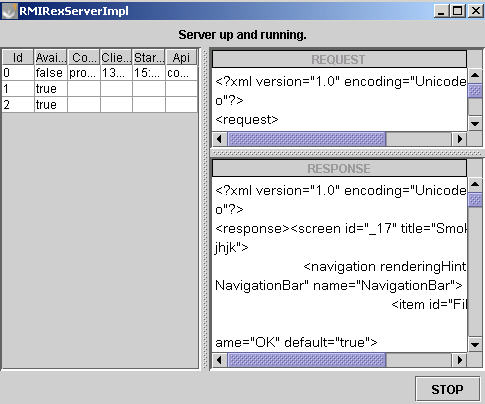
It is possible to click into the response window, to select all (CTRL+A), copy (CTRL+C), and paste the contents into the editor of your choice, where the screen can then be analysed.
The navigation via items deals with the display of the possible contexts. The following chapter Typical screen with Risk-Data deals with the display of the current context with all its questions and relations.
The navigation via items
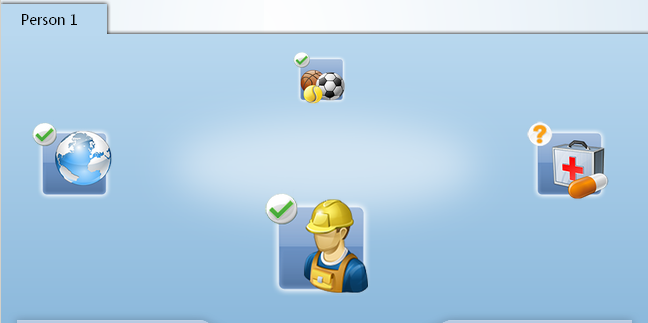
or
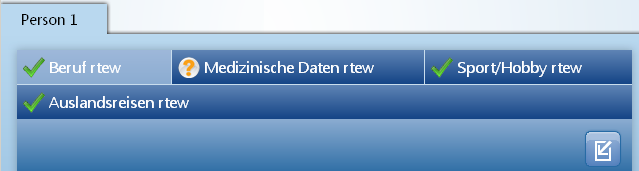
COMPASS describes this screen in the following way (only items shown; currently selected the occupation icon/Beruf rtew):
<screen>
    <person personName="rtew" personID=”4711”>
        <item current="true" personName="rtew" consistent="true" order="1" id="_100"
            name="Beruf rtew" group="X_1" personID=”4711”>
            <question
            ...
            </question>
        </item>
        <item current="false" personName="rtew" consistent="false" order="2" id="_101"
            name="Medizinische Daten rtew" group="X_3" personID=”4711”></item>
        <item current="false" personName="rtew" consistent="true" order="3" id="_109"
            name="Sport/Hobby rtew" group="X_2" personID=”4711”></item>
        <item current="false" personName="rtew" consistent="true" order="4" id="_110"
            name="Auslandsreisen rtew" group="X_4" personID=”4711”></item>
    </person>
</screen>
Typical screen with Risk-Data
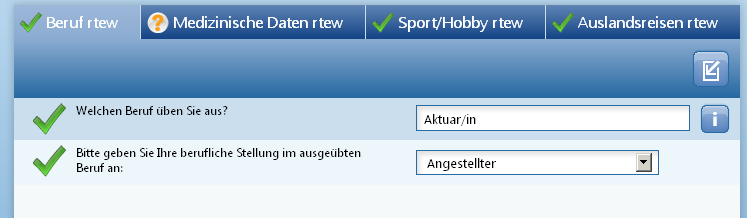
COMPASS describes this screen in the following way (only current item shown):
<item current="true" personName="rtew" consistent="true" order="1" id="_100"
    name="Beruf rtew" group="X_1" personID=”4711”>
    <question toolTip="Berufshilfetext" id="X_1#_100#200_995_209" order="1">
        <textInput mandatory="true" id="209" rows="1" editable="true"
            error="false" searchable="2139" language="de">
            <value id="2309" value="Aktuar/in"></value>
        </textInput>
        <text text="Welchen Beruf üben Sie aus?" error="false"></text>
    </question>
    <question id="X_1#_100#200_995_127" order="2">
        <selection mandatory="true" id="127" editable="true"
            name="Berufs-Stellung" error="false">
            <value id="11" selected="true" value="Angestellter"></value>
            <value id="12" value="Angestellter im öffentlichen Dienst"></value>
            <value id="4" value="Arbeiter"></value>
            <value id="0" value="Arbeitsloser"></value>
            <value id="2" value="Auszubildender"></value>
            <value id="10" value="Beamter (auf Lebenszeit)"></value>
            <value id="8" value="Beamter auf Probe"></value>
            <value id="9" value="Beamter auf Widerruf"></value>
            <value id="6" value="Hausfrau"></value>
            <value id="7" value="Rentner"></value>
            <value id="13" value="Schüler"></value>
            <value id="3" value="Selbständiger"></value>
            <value id="14" value="Soldat"></value>
            <value id="1" value="sonstiges"></value>
            <value id="5" value="Student"></value>
        </selection>
        <text text="Bitte geben Sie Ihre berufliche Stellung im ausgeübten Beruf an:" error="false"></text>
    </question>
</item>
screen displaying a context change (relation)
This example contains the screen where pursuits can be added, but also deleted. Therefore there are 2 additional icons:  New and
  Delete.
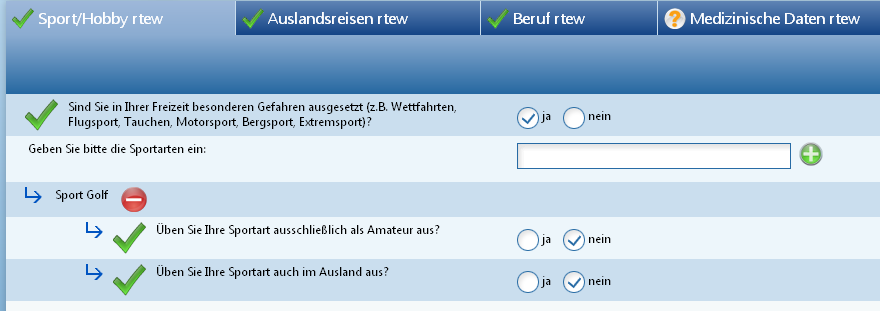
COMPASS describes this screen/item in the following way:
<item current="true" personName="rtew" consistent="true" order="3" id="_109" name="Sport/Hobby rtew" group="X_2" personID=”4711”>
	<question id="X_2#_109#200_311" order="1">
		<selection mandatory="true" id="311" editable="true" name="Sport (j/n)" error="false">
			<value id="1" selected="true" value="ja"/>
			<value id="0" value="nein"/>
		</selection>
		<text text="Sind Sie in Ihrer Freizeit besonderen Gefahren ausgesetzt (z.B. Wettfahrten,
                    Flugsport, Tauchen, Motorsport, Bergsport, Extremsport)?" error="false"/>
	</question>
	<relation addCommand="1003_24147#101" id="X_2#_110#200_1003" deleteCommand="1003_24147#103" order="2">
		<text text="Geben Sie bitte die Sportarten ein:" error="false"/>
		<textInput mandatory="false" id="X_2#_110#200_1003_163" rows="1" editable="true" error="false" searchable="2108" language="de">
			<value id="2316" value=""/>
		</textInput>
		<relationElement id="Sport Golf_206" value="Sport Golf">
			<text text="Sport Golf"/>
			<question id="X_2#_111#206_240" order="1">
				<selection mandatory="true" id="240" editable="true" name="Amateur" error="false">
					<value id="1" value="ja"/>
					<value id="0" selected="true" value="nein"/>
				</selection>
				<text text="Üben Sie Ihre Sportart ausschließlich als Amateur aus?" error="false"/>
			</question>
			<question id="X_2#_111#206_20" order="2">
				<selection mandatory="true" id="20" editable="true" name="Auslandsausübung (j/n)" error="false">
					<value id="1" value="ja"/>
					<value id="0" selected="true" value="nein"/>
				</selection>
				<text text="Üben Sie Ihre Sportart auch im Ausland aus?" error="false"/>
			</question>
		</relationElement>
	</relation>
</item>
Screen displaying a relation which allows the selection of existing entries
This example contains the screen where disorders can be added, but also deleted. Additionally the already entered disorder asthma can be selected as an answer to the first displayed question. The rest is as described in the previous chapter:
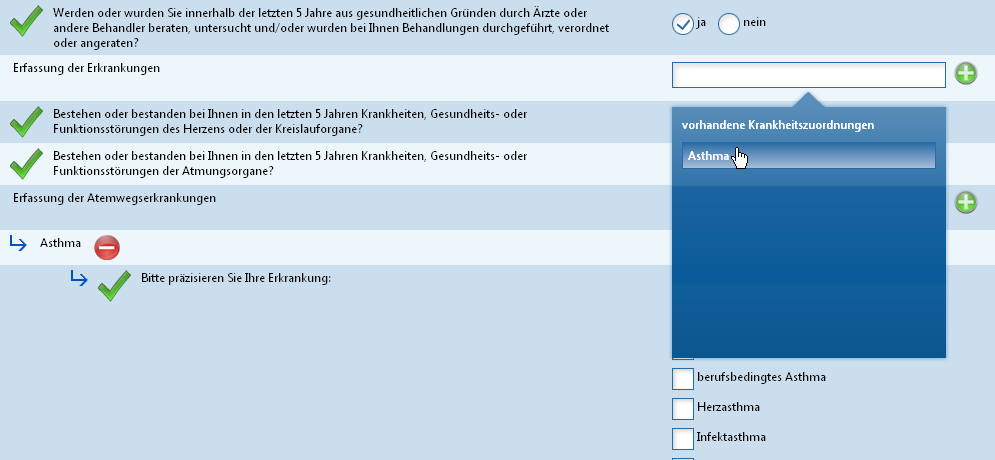
COMPASS describes this screen/item in the following way:
Source
<item current="true" personName="rtew" consistent="false" order="2" id="_101"
 	name="Medizinische Daten rtew" group="X_3" personID=”4711”>
   <question id="X_3#_102#200_204" order="1">
      <selection mandatory="true" id="204" editable="true" name="Krankheiten, Störungen,
 		Beschwerden (j/n)" error="false">
         <value id="1" selected="true" value="ja"></value>
         <value id="0" value="nein"></value>
      </selection>
      <text text="Werden oder wurden Sie innerhalb der letzten 5 Jahre aus gesundheitlichen Gründen durch Ärzte oder andere Behandler beraten, untersucht und/oder wurden bei Ihnen  Behandlungen durchgeführt, verordnet oder angeraten?" error="false"></text>
   </question>
   <question id="X_3#_104#200_287" order="3">
      <selection mandatory="true" id="287" editable="true" name="allgFragen01 (j/n)"
 		error="false">
         <value id="1" value="ja"></value>
         <value id="0" selected="true" value="nein"></value>
      </selection>
      <text text="Bestehen oder bestanden bei Ihnen in den letzten 5 Jahren Krankheiten,
          Gesundheits- oder Funktionsstörungen des Herzens oder der Kreislauforgane?"
          error="false"></text>
   </question>
   <question id="X_3#_105#200_286" order="4">
      <selection mandatory="true" id="286" editable="true" name="allgFragen02 (j/n)"
          error="false">
         <value id="1" selected="true" value="ja"></value>
         <value id="0" value="nein"></value>
      </selection>
      <text text="Bestehen oder bestanden bei Ihnen in den letzten 5 Jahren Krankheiten,
          Gesundheits- oder Funktionsstörungen der Atmungsorgane?" error="false"></text>
   </question>
   <relation addCommand="1015_24147#101" id="X_3#_103#200_1015" order="2" relateCommand="1015_24147#104" type="relate">
      <text text="Erfassung der Erkrankungen" error="true"></text>
      <textInput mandatory="true" id="X_3#_103#200_1015_115" rows="1" editable="true"
 		error="true" searchable="2128" language="de">
         <value id="2321" value=""></value>
      </textInput>
      <selection id="X_3#_103#200_1015_115_A" editable="true" multiple="false">
         <value id="Asthma_206" value="Asthma"></value>
      </selection>
   </relation>
   <relation addCommand="1019_24147#101" id="X_3#_106#200_1019" deleteCommand="1019_24147#105"
 		order="5" relateCommand="1019_24147#104" type="relate">
      <text text="Erfassung der Atemwegserkrankungen" error="false"></text>
      <textInput mandatory="true" id="X_3#_106#200_1019_115" rows="1" editable="true"
 		error="false" searchable="2128" language="de">
         <value id="2323" value=""></value>
      </textInput>
      <selection id="X_3#_106#200_1019_115_A" editable="true" multiple="false">
         <value id="Asthma_206" value="Asthma"></value>
      </selection>
      <relationElement id="Asthma_206" value="Asthma">
         <text text="Asthma"></text>
         <question id="X_3#_107#206_100000540" order="1">
            <selection mandatory="false" id="100000540" multiple="true" editable="true"
 			name="unspezifisches Asthma" error="false">
               <value id="1007" value="allergisches Asthma"></value>
               <value id="1004" value="Anstrengungsasthma"></value>
               <value id="1002" value="asthmatische Dauerkrampfanfälle"></value>
               <value id="1003" value="berufsbedingtes Asthma"></value>
               <value id="1005" value="Herzasthma"></value>
               <value id="1006" value="Infektasthma"></value>
               <value id="1001" value="Ãœberempfindlichkeit der Atemwege"></value>
               <value id="unknown" selected="true" value="sonstiges"></value>
            </selection>
            <text text="Bitte präzisieren Sie Ihre Erkrankung:" error="false"></text>
         </question>
      </relationElement>
   </relation>
</item>
Screen displaying a relation to a doctor
This example contains the screen where a doctor has been defined. A doctor is a single relation, as COMPASS does not consider (in most cases) more than one doctor for a disorder:
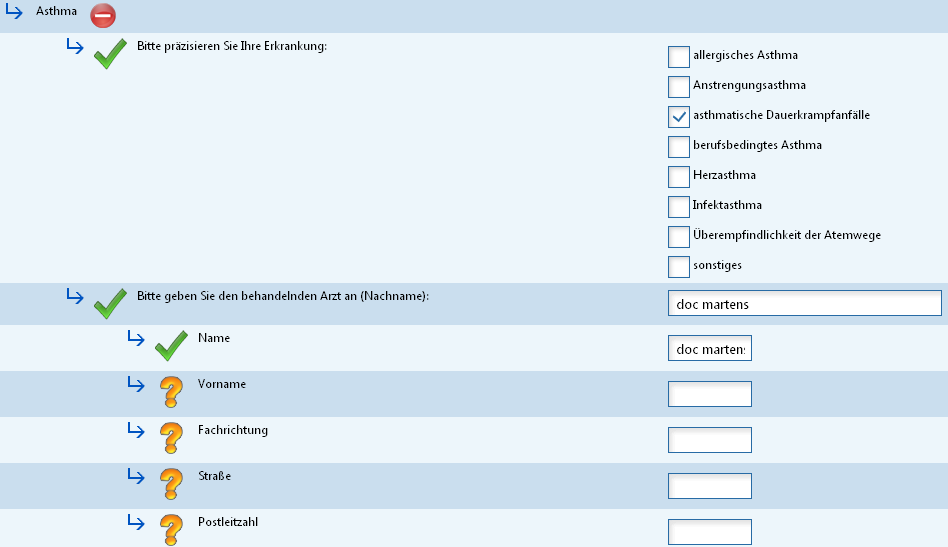
COMPASS describes this screen/relation in the following way:
Source
<relationElement id="Asthma_206" value="Asthma">
	<text text="Asthma"/>
	<question id="X_3#_108#206_100000540" order="1">
		<selection mandatory="false" id="100000540" multiple="true" editable="true" name="unspezifisches Asthma" error="false">
			<value id="1007" value="allergisches Asthma"/>
			<value id="1004" value="Anstrengungsasthma"/>
			<value id="1002" selected="true" value="asthmatische Dauerkrampfanfälle"/>
			<value id="1003" value="berufsbedingtes Asthma"/>
			<value id="1005" value="Herzasthma"/>
			<value id="1006" value="Infektasthma"/>
			<value id="1001" value="Ãœberempfindlichkeit der Atemwege"/>
			<value id="unknown" value="sonstiges"/>
		</selection>
		<text text="Bitte präzisieren Sie Ihre Erkrankung:" error="false"/>
	</question>
	<relation id="X_3#_109#206_555" order="2" type="doctor">
		<text text="Bitte geben Sie den behandelnden Arzt an (Nachname):" error="false"/>
		<selection mandatory="true" id="X_3#_109#206_555_44" editable="true" error="false">
			<value id="doc martens" selected="true" value="doc martens"/>
			<value id="" value=""/>
		</selection>
		<relationElement id="doc martens" value="doc martens">
			<question id="X_3#_110#209_44" order="1">
				<textInput mandatory="true" id="44" rows="1" error="false" editable="false" minLength="0" maxLength="60">
					<value id="1160" value="doc martens"/>
				</textInput>
				<text text="Name" error="false"/>
			</question>
			<question id="X_3#_110#209_114" order="2">
				<textInput mandatory="false" id="114" rows="1" error="false" editable="true" minLength="0" maxLength="30">
					<value id="1158" value=""/>
				</textInput>
				<text text="Vorname" error="false"/>
			</question>
			<question id="X_3#_110#209_245" order="3">
				<textInput mandatory="true" id="245" rows="1" error="false" editable="true" minLength="0" maxLength="60">
					<value id="1161" value=""/>
				</textInput>
				<text text="Fachrichtung" error="false"/>
			</question>
			<question id="X_3#_110#209_251" order="4">
				<textInput mandatory="false" id="251" rows="1" error="false" editable="true" minLength="0" maxLength="30">
					<value id="1159" value=""/>
				</textInput>
				<text text="Straße" error="false"/>
			</question>
			<question id="X_3#_110#209_288" order="5">
				<textInput mandatory="false" id="288" rows="1" error="false" editable="true" minLength="0" maxLength="6">
					<value id="2183" value=""/>
				</textInput>
				<text text="Postleitzahl" error="false"/>
			</question>
			<question id="X_3#_110#209_138" order="6">
				<textInput mandatory="true" id="138" rows="1" error="false" editable="true" minLength="0" maxLength="30">
					<value id="2184" value=""/>
				</textInput>
				<text text="Wohnort" error="false"/>
			</question>
		</relationElement>
	</relation>
</relationElement>
The Search-screen
COMPASS SB 2.0 uses the COMPASS Search engine only to find the correct term. If the term has not been found, the entered term is assumed to be correct, although it is not in the COMPASS database. Therefore a further search engine has been plugged into COMPASS Touch. In this case it is Lucene, and it replaces the COMPASS Search engine.
In COMPASS Touch (! Not in SB 2.0 !) a search is triggered by a Lucene WebService, and it is displayed in the following way:
Possible matches: 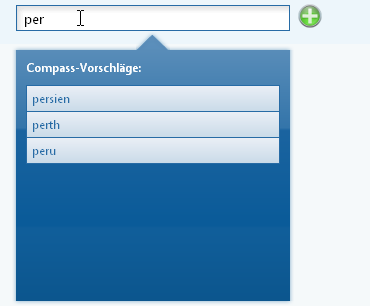
No match found: 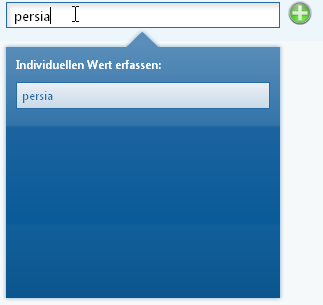
To enable to search in the correct list of terms, a text input field has an identifier of the corresponding list (in this case list of countries / 2141):
<relation id="X_4#_114#200_1001" order="2" addCommand="1001_24147#101">
	<text text="Geben Sie bitte die Länder an, die Sie bereisen:" error="false"/>
	<textInput mandatory="false" id="X_4#_114#200_1001_45" rows="1" editable="true" error="false" searchable="2141" language="de">
		<value id="2314" value=""/>
	</textInput>
</relation>
A date question

COMPASS describes this question in the following way:
<question id="X_3#_108#206_100000982" order="3">
	<dateInput mandatory="true" id="100000982" display="MY" editable="true" error="false">
		<value id="100000982" value=""/>
	</dateInput>
	<text text="Wann ist die Erkrankung/Ursache das erste Mal aufgetreten?" error="false"/>
</question>
A period question
A period question consists of a begin-, and end-date, plus a duration (in weeks, months, years or days).

Entering the date: 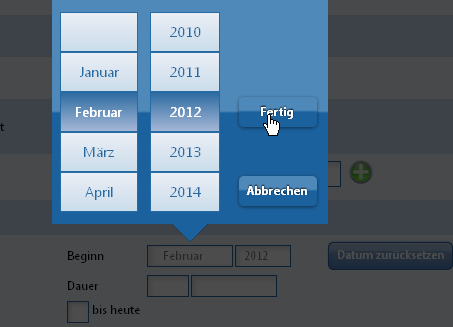
Entering the duration: 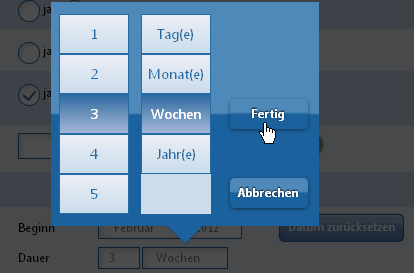
COMPASS describes this question in the following way:
<question id="X_3#_104#207_9" order="1">
	<dateInput mandatory="true" id="9" display="MY" editable="true" error="false">
		<value id="9" value="??.2.2012;??.??.??;3;8"/>
		<unit id="5" name="Monat(e)"/>
		<unit id="8" name="Wochen"/>
		<unit id="16" name="Jahr(e)"/>
		<unit id="2" name="Tag(e)"/>
	</dateInput>
	<text text="Wann ist die Erkrankung aufgetreten?"/>
</question>
userAction examples
This chapter deals with the userActions. It describes the relevant item (screen) and question, modified value, and the userAction that corresponds to the action.
Changing the value of a numberInput
First the field with empty value:
<item current="true" personName="Mr. X" consistent="true" order="2" id="_101" name="Medical data Mr. X " group="X_3" personID="4711">
	<question id="X_3#_101#200_158" order="1">
		<numberInput maxVal="300" mandatory="true" id="158" maxNumberDecimals="0" minVal="1" error="true" editable="true">
			<value id="1293" value=""/>
			<unit id="13" name="cm"/>
		</numberInput>
		<text text="Height" error="true"/>
	</question>
</item>
Now the user typed in 172 cm:
<userAction screenID="_101" screenCommand="_101">
	<answer question="X_3#_101#200_158">
		<value id="1293" value="172" unit="13"/>
	</answer>
</userAction>
resulting in the field displaying the value:
<item current="true" personName="Mr. X" consistent="true" order="2" id="_101" name="Medical data Mr. X " group="X_3" personID="4711">
	<question id="X_3#_101#200_158" order="1">
		<numberInput maxVal="300" mandatory="true" id="158" maxNumberDecimals="0" minVal="1" error="false" editable="true">
			<value id="1293" value="172"/>
			<unit id="13" name="cm"/>
		</numberInput>
		<text text="Height " error="false"/>
	</question>
Now the userAction to delete the value:
<userAction screenID="_101" screenCommand="_101">
	<answer question="X_3#_101#200_158">
		<value id="1293" value="" unit="13"/>
	</answer>
</userAction>
Changing the value of a textInput
First the field with empty value:
<item current="true" personName="Mr. X" consistent="false" order="1" id="_100" name="Occupation Mr. X" group="X_1" personID="4711">
	<question id="X_1#_101#201_1728" order="3">
		<textInput mandatory="true" id="1728" rows="3" error="false" editable="true" minLength="0" maxLength="60">
			<value id="2312" value=""/>
		</textInput>
		<text text="Describe your occupational status:" error="false"/>
	</question>
</item>
Now the user typed in textInput:
<userAction screenID="_100" screenCommand="_100">
	<answer question="X_1#_101#201_1728">
		<value id="2312" value="Textinput"/>
	</answer>
</userAction>
resulting in the field displaying the value:
<item current="true" personName="Mr. X" consistent="false" order="1" id="_100" name="Occupation Mr. X" group="X_1" personID="4711">
	<question id="X_1#_101#201_1728" order="3">
		<textInput mandatory="true" id="1728" rows="3" error="false" editable="true" minLength="0" maxLength="60">
			<value id="2312" value="Textinput"/>
		</textInput>
		<text text="Describe your occupational status:" error="false"/>
	</question>
</item>
Now the userAction to delete the value:
<userAction screenID="_100" screenCommand="_100">
	<answer question="X_1#_101#201_1728">
		<value id="2312" value=" "/>
	</answer>
</userAction>
Changing the value of a single selection
First the field with no value selected:
<item current="true" personName="Mr. X" consistent="false" order="4" id="_110" name="Foreign Travel Mr. X" group="X_4" personID="4711">
<question id="X_4#_112#202_100000638" order="1">
<selection mandatory="true" id="100000638" editable="true" name="duration of stay" error="false">
<value id="1004" value="<= 90 days per year"/>
<value id="1003" value="temporary, > 90 days per year"/>
<value id="1001" value="unknown"/>
<value id="1002" value="unlimited"/>
</selection>
<text text="How long will you stay abroad?" error="false"/>
</question>
</item>Now select the first value:
<userAction screenID="_110" screenCommand="_110">
<answer question="X_4#_112#202_100000638">
<value id="1004" value="<= 90 days per year "/>
</answer>
</userAction>Results in:
<item current="true" personName="Mr. X" consistent="false" order="4" id="_110" name="Foreign Travel Mr. X" group="X_4" personID="4711">
<question id="X_4#_112#202_100000638" order="1">
<selection mandatory="true" id="100000638" editable="true" name="duration of stay" error="false">
<value id="1004" selected="true" value="<= 90 days per year"/>
<value id="1003" value="temporary, > 90 days per year"/>
<value id="1001" value="unknown"/>
<value id="1002" value="unlimited"/>
</selection>
<text text="How long will you stay abroad?" error="false"/>
</question>
</item>To deselect the value pass an empty answer:
<userAction screenID="_110" screenCommand="_110">
	<answer question="X_4#_112#202_100000638"/>
</userAction>
Changing the value of a multiple selection
COMPASS needs to be notified about every change of a value. Always send all selected values, not just the one added. In certain cases COMPASS will not allow no value to be selected. This is the case, when you have values with id unknown or none in the set of possible values:
<selection multiple="true" mandatory="false" id="100000641" name="Trip activities" error="false" editable="true">
	<value id="1010" selected="true" value="office"/>
	<value id="1020" value="manual work"/>
	<value id="1060" value="Other"/>
	<value id="unknown" value="Do not know"/>
</selection>
Starting with a selection X that has only one value selected:
<item current="true" personName="Mr. X" consistent="false" order="4" id="_104" name="Trips Mr. X" group="X_4" personID="4711">
	<question id="X_4#_107#202_100000641" order="4">
		<selection mandatory="false" id="100000641" multiple="true" editable="true" name="Foreign travel activities" error="false">
			<value id="1003" value="machines"/>
			<value selected="true" id="1006" value="office"/>
			<value id="1002" value="driving"/>
			<value id="1001" value="other"/>
			<value id="unknown" value="do not know"/>
		</selection>
		<text text="What is your activity?" error="false"/>
	</question>
</item>
Adding a second value to the selection X (here other)
<userAction screenID="_104" screenCommand="_104">
	<answer question="X_4#_107#202_100000641">
		<value id="1001" value="other"/>
		<value id="1006" value="office"/>
	</answer>
</userAction>
leads to
<item current="true" personName="Mr. X" consistent="false" order="4" id="_104" name="Trips Mr. X" group="X_4" personID="4711">
	<question id="X_4#_107#202_100000641" order="4">
		<selection mandatory="false" id="100000641" multiple="true" editable="true" name="Foreign travel activities" error="false">
			<value id="1003" value="machines"/>
			<value selected="true" id="1006" value="office"/>
			<value id="1002" value="driving"/>
			<value selected="true" id="1001" value="other"/>
			<value id="unknown" value="do not know"/>
		</selection>
		<text text="What is your activity?" error="false"/>
	</question>
</item>
Deselecting the value office of the selection X
<userAction screenID="_104" screenCommand="_104">
	<answer question="X_4#_107#202_100000641"/>
</userAction>
leads to
<item current="true" personName="Mr. X" consistent="false" order="4" id="_104" name="Trips Mr. X" group="X_4" personID="4711">
	<question id="X_4#_107#202_100000641" order="4">
		<selection mandatory="false" id="100000641" multiple="true" editable="true" name="Foreign travel activities" error="false">
			<value id="1003" value="machines"/>
			<value id="1006" value="office"/>
			<value id="1002" value="driving"/>
			<value id="1001" value="other"/>
			<value selected="true" id="unknown" value="do not know"/>
		</selection>
		<text text="What is your activity?" error="false"/>
	</question>
</item>
Notice that in this case the unknown value has been selected. When there is no value with id="unknown", then no value of the selection is selected.
Changing the value of a dateInput
The dateInput is used to capture a date or a period, where the period consists of two dates (begin and end) plus a duration. For a period not all 3 fields (begin-date, end-date and duration) are mandatory.
We will consider dates and period separately:
Date dateInput
This type of dateInput can be recognised by the missing unit elements:
Date empty:
<item current="true" personName="Mr. X" consistent="false" order="2" id="_101" name="medical Mr. X" group="X_3" personID="4711">
	<question id="X_3#_105#203_100000982" order="3">
		<dateInput mandatory="true" id="100000982" display="MY" editable="true" error="true">
			<value id="100000982" value=""/>
		</dateInput>
	</question>
</item>
A dateInput containing a real date looks as follows:
<item current="true" personName="Mr. X" consistent="false" order="2" id="_101" name="medical Mr. X" group="X_3" personID="4711">
	<question id="X_3#_105#203_100000982" order="3">
		<dateInput mandatory="true" id="100000982" display="MY" editable="true" error="false">
			<`value` id="100000982" value="??.3.2012"/>
		</dateInput>
	</question>
</item>
To change the value to a different date (here to 2011) use the following userAction:
<userAction screenID="_101"
            screenCommand="_101">
	<answer question="X_3#_105#203_100000982">
		<value id="100000982"
		       value="??.??.2011"/>
	</answer>
</userAction>
To clear the date completely, pass an empty answer
<userAction screenID="_101" screenCommand="_101">
	<answer question="X_3#_105#203_100000982">
		<value id="100000982" value="??.??.????"/>
	</answer>
</userAction>
Period dateInput
This type of dateInput can be recognised by the included unit elements:
Period empty:
<item current="true" personName="Mr. X" consistent="false" order="2" id="_101" name="medical Mr. X" group="X_3" personID="4711">
	<question id="X_3#_107#204_9" order="1">
		<dateInput mandatory="true" id="9" display="MY" editable="true" error="true">
			<value id="9" value=""/>
			<unit id="5" name="Month(s)"/>
			<unit id="8" name="Week(s)"/>
			<unit id="16" name="Year(s)"/>
			<unit id="2" name="Day(s)"/>
		</dateInput>
		<text text="During which period did this happen?"/>
	</question>
</item>
A dateInput containing a real period (here starting March 2009, duration 1 week) looks as follows:
<item current="true" personName="Mr. X" consistent="false" order="2" id="_101" name="medical Mr. X" group="X_3" personID="4711">
	<question id="X_3#_107#204_9" order="1">
		<dateInput mandatory="true" id="9" display="MY" editable="true" error="true">
			<value id="9" value="??.3.2009;??.??.????;1;8"/>
			<unit id="5" name="Month(s)"/>
			<unit id="8" name="Week(s)"/>
			<unit id="16" name="Year(s)"/>
			<unit id="2" name="Day(s)"/>
		</dateInput>
		<text text="During which period did this happen?"/>
	</question>
</item>
To change the value to a different period (here to no duration, i.e. still ongoing) use the following userAction:
<userAction screenID="_101" screenCommand="_101">
    <answer question="X_3#_107#204_9">
        <value id="9" value="??.3.2009;??.??.????;??;??"></value>
    </answer>
</userAction>
To clear the period completely, pass an empty answer
<userAction screenID="_101" screenCommand="_101">
	<answer question="X_3#_107#204_9">
		<value id="9" value="??.??.????;??.??.????;??;??"/>
	</answer>
</userAction>
Simple relation
In this chapter we start with a relation with no elements. We add one element, and then delete it.
Empty relation:
<item current="true" personName="Mr. X" consistent="true" order="4" id="_109" name="Trips Mr. X" group="X_4" personID="4711">
	<relation id="X_4#_110#200_1001" order="2" addCommand="1001_24147#101">
		<text text="Type in countries you are travelling to:" error="false"/>
		<textInput mandatory="false" id="X_4#_110#200_1001_45" rows="1" editable="true" error="false" searchable="2141" language="en">
			<value id="2314" value=""/>
		</textInput>
	</relation>
</item>
To add one entry (here country Peru) use the following userAction:
<userAction screenID="_109" screenCommand="1001_24147#101">
	<answer question="X_4#_110#200_1001_45">
		<value value="peru"/>
	</answer>
</userAction>
This results in the following item:
<item current="true" personName="Mr. X" consistent="true" order="4" id="_109" name="Trips Mr. X" group="X_4" personID="4711">
	<relation addCommand="1001_24147#101" id="X_4#_110#200_1001" deleteCommand="1001_24147#103" order="2">
		<text text="Type in countries you are travelling to:" error="false"/>
		<textInput mandatory="false" id="X_4#_110#200_1001_45" rows="1" editable="true" error="false" searchable="2141" language="en">
			<value id="2314" value=""/>
		</textInput>
		<relationElement id="Trip Peru_205" value="Trip to Peru">
			<text text="Trip to Peru"/>
			<question id="X_4#_111#205_100000638" order="1">...</question>
		</relationElement>
	</relation>
</item>
To delete one entry (here country Peru) use the following userAction:
<userAction screenID="_109" screenCommand="1001_24147#103">
	<answer question="X_4#_110#200_1001">
		<value id="Trip Peru_205" value="Trip to Peru"/>
	</answer>
</userAction>
A relation which allows the selection of existing disorders
This type of relation happens only for disorder-relations. For a person a specific disorder X can be the answer to several yes/no-questions. In such a situation the user is offered all previously entered disorders, so the user can select one of these, or add a new disorder. Should an existing disorder being related to the current question, we speak of a relate relation, and mark such a relation with the type=”relate” attribute.
There are 3 possible situations:
There are no previously entered disorders that could be offered
<item current="true" personName="Mr. X" consistent="true" order="2" id="_101" name="Medical data Mr. X" group="X_3" personID="4711">
	<relation addCommand="1017_24147#101" id="X_3#_104#200_1017" order="7" type="relate">
		<text text="Capturing heart diseases" error="false"/>
		<textInput mandatory="true" id="X_3#_104#200_1017_115" rows="1" editable="true" error="false" searchable="2128" language="en">
			<value id="2322" value=""/>
		</textInput>
		<selection id="X_3#_104#200_1017_115_A" editable="true" multiple="false"/>
	</relation>
</item>
There are previously entered disorders, and the user has not selected any of those
<item current="true" personName="Mr. X" consistent="true" order="2" id="_101" name="Medical data Mr. X" group="X_3" personID="4711">
	<relation addCommand="1019_24147#101" id="X_3#_108#200_1019" order="9" relateCommand="1019_24147#104" type="relate">
		<text text="Capturing respiratory disorders" error="false"/>
		<textInput mandatory="true" id="X_3#_108#200_1019_115" rows="1" editable="true" error="false" searchable="2128" language="en">
			<value id="2323" value=""/>
		</textInput>
		<selection id="X_3#_108#200_1019_115_A" editable="true" multiple="false">
			<value id="Runny nose_209" value="Runny nose"/>
			<value id="Cough_210" value="Cough"/>
		</selection>
	</relation>
</item>
There are previously entered disorders, and the user has selected one/some of those
<item current="true" personName="Mr. X" consistent="true" order="2" id="_101" name="Medical data Mr. X" group="X_3" personID="4711">
	<relation addCommand="1019_24147#101" id="X_3#_108#200_1019" deleteCommand="1019_24147#105" order="9" relateCommand="1019_24147#104" type="relate">
		<text text="Capturing respiratory disorders" error="false"/>
		<textInput mandatory="true" id="X_3#_108#200_1019_115" rows="1" editable="true" error="false" searchable="2128" language="en">
			<value id="2323" value=""/>
		</textInput>
		<selection id="X_3#_108#200_1019_115_A" editable="true" multiple="false">
			<value id="Runny nose_209" value="Runny nose"/>
			<value id="Cough_210" value="Cough"/>
		</selection>
		<relationElement id="Cough_210" value="Cough">
			<text text="Cough"/>
		</relationElement>
	</relation>
</item>
Depending on the situation, it is possible to relate disorders, delete them (actually unrelate them) and adding new ones. The relation element contains the command-IDs for each of those operations.
Delete/Unrelate a disorder:
<userAction screenID="_101" screenCommand="1019_24147#105">
	<answer question="X_3#_108#200_1019">
		<value id="Runny nose_209" value="Runny nose"/>
	</answer>
</userAction>
Add a new disorder:
<userAction screenID="_101" screenCommand="1019_24147#101">
	<answer question="X_3#_108#200_1019_115">
		<value value="myasthenia"/>
	</answer>
</userAction>
Relate an existing disorder to this relation:
<userAction screenID="_101" screenCommand="1019_24147#104">
	<answer question="X_3#_108#200_1019_115_A">
		<value id="Runny nose_209" value="Runny nose"/>
	</answer>
</userAction>
Doctor’s relation
The doctor’s relation is a special relation, as it can also display previously entered doctors. It is characterised by the attribute type=”doctor”.
The empty relation, asking the user to enter a doctor’s name is the following:
<item current="true" personName="Mr. X" consistent="false" order="2" id="_101" name="Medical data Mr. X" group="X_3" personID="4711">
	<relation id="X_3#_107#233_555" order="2" type="doctor">
		<text text="Please type in the name of the doctor:" error="false"/>
		<selection mandatory="true" id="X_3#_107#233_555_44" editable="true" error="false">
			<value id="" selected="true" value=""/>
		</selection>
	</relation>
</item>
Then there is an empty relation which allows to choose from other previously entered doctors (here Doc Morris):
<item current="true" personName="Mr. X" consistent="false" order="2" id="_101" name="Medical data Mr. X" group="X_3" personID="4711">
	<relation id="X_3#_107#233_555" order="2" type="doctor">
		<text text="Please type in the name of the doctor:" error="false"/>
		<selection mandatory="true" id="X_3#_107#233_555_44" editable="true" error="false">
			<value id="Doc Morris" value="Doc Morris"/>
			<value id="" selected="true" value=""/>
		</selection>
	</relation>
</item>
It is now possible to select a doctor, add a new one, change the name of the existing one and delete the doctor. Therefore 3 userActions (add a new one, and changing the name are the same userAction):
Add a new one, or change existing’s name one:
<userAction screenID="_101" screenCommand="_101">
	<answer question="X_3#_110#235_540_44">
		<value value="Doc Martens"/>
	</answer>
</userAction>
Set field to no doctor:
<userAction screenID="_101"
            screenCommand="_101">
	<answer question="X_3#_110#235_540_44">
		<value value=""/>
	</answer>
</userAction>
Select an existing doctor:
<userAction screenID="_101"
            screenCommand="_101">
	<answer question="X_3#_110#235_540_44">
		<value id="Doc Morris" value="Doc Morris"/>
	</answer>
</userAction>
Further userActions
There are 6 further commands that can be defined as userActions:
Save
This command saves the current state of the application:
<userAction screenCommand="#6" screenID="xxx">
    ... possibly including an `answer`
</userAction>
where xxx is the id of the current item.
End capturing
This command tries to finalise the capturing of the application. If the capturing can be finalised (no inconsistencies found) COMPASS confirms this with an operationResult (see COMPASS Response is an OperationalResult). Otherwise COMPASS returns a screen.
<userAction screenCommand="#4" screenID="xxx">
    ... possibly including an `answer`
</userAction>
where xxx is the id of the current item.
Cancel Capturing
It is always possible to cancel the capturing (no saving done). The command is the following:
<userAction screenCommand="#8" screenID="xxx">
</userAction>
where xxx is the id of the current item.
Cancel POS dialogue
This is possible for relationElement`s that contain POS Screens that can be cancelled. In such a situation the `relationElement contains the lastPOSScreen attribute. Its value xxx is used in the following command:
<userAction screenCommand="#401" screenID="xxx">
</userAction>
Change context
When there are several items, it is possible to navigate between them.
Every item has its id:
<item current="false" personName="Mr. X" consistent="true" order="1" id="_100" name="Occupation Mr. X" group="X_1" personID="4711"/>
<item current="true" personName="Mr. X" consistent="false" order="2" id="_101" name="Medical data Mr. X" group="X_3" personID="4711">
	<question id="X_3#_101#200_158" order="1">
	...
	</question>
</item>
<item current="false" personName="Mr. X" consistent="true" order="3" id="_114" name="Pursuits Mr. X" group="X_2" personID="4711"/>
<item current="false" personName="Mr. X" consistent="true" order="4" id="_115" name="Foreign Travel Mr. X" group="X_4" personID="4711"/>
The userAction states the current id in its attribute screenID_and the target _id in the _screenCommand_attribute:
<userAction screenID="_101" screenCommand="_115"></userAction>This command changes the current context from “medical data (101)” to “Foreign Travel (104)”.
Reactivate cancelled POS dialogue
This is possible for relationElements that have been previously cancelled (see Cancel POS Dialogue). Such a relationElement can be identified by its attribute isCancelled="true". In such a situation the relationElement contains the lastPOSScreen attribute. Its value xxx is used in the following command:
<userAction screenCommand="#402" screenID="xxx"></userAction>DTD
DTD for the screen element SB 2.0
The screen element is used by the response element, and is therefore included in the file config\dtd\screenSB2.dtd and referenced by config\dtd\response.dtd.
Click to open DTD
<!ELEMENT screen (person+)>
<!ELEMENT person (item+)>
<!ATTLIST person
    personName CDATA ""
    personID CDATA ""
    orientation (LTR|RTL) "LTR"
    language CDATA #IMPLIED>

<!ELEMENT item ((question|relation)*)>
<!ATTLIST item
    current (true | false) #IMPLIED
    id CDATA #REQUIRED
    name CDATA #REQUIRED
    group CDATA #IMPLIED
    personName CDATA ""
    personID CDATA ""
    order CDATA #REQUIRED
    consistent (true | false) #IMPLIED>

<!ELEMENT question ((textInput | numberInput | dateInput | selection)?, text?)>
<!ATTLIST question
    id CDATA #REQUIRED
    order CDATA #REQUIRED
    toolTip CDATA #IMPLIED
    catyID CDATA #IMPLIED
    cotyID CDATA #IMPLIED
    errorToolTip CDATA #IMPLIED>

<!ELEMENT relation (text?, textInput?, selection?, relationElement*)>
<!ATTLIST relation
    addCommand CDATA #IMPLIED
    deleteCommand CDATA #IMPLIED
    relateCommand CDATA #IMPLIED
    id CDATA #REQUIRED
    order CDATA #REQUIRED
    type CDATA (doctor | relate) #IMPLIED
    toolTip CDATA #IMPLIED
    errorToolTip CDATA #IMPLIED>

<!ELEMENT relationElement (text?, (question | relation)*)>
<!ATTLIST relationElement
    id CDATA #REQUIRED
    value CDATA #REQUIRED
    consistent (true | false) #IMPLIED
    lastPOSScreen CDATA #IMPLIED
    isCancelled (true | false) "false">

<!ELEMENT text EMPTY>
<!ATTLIST text
    text CDATA #REQUIRED
    error (true | false) "false">

<!ELEMENT textInput (value)>
<!ATTLIST textInput
    id CDATA #REQUIRED
    rows CDATA "1"
    editable (true | false) "true"
    error (true | false) "false"
    mandatory (true | false) "false"
    searchable CDATA #IMPLIED
    minLength CDATA #IMPLIED
    maxLength CDATA #IMPLIED
    language CDATA #IMPLIED>

<!ELEMENT numberInput (value, unit?)>
<!ATTLIST numberInput
    id CDATA #REQUIRED
    editable (true | false) "true"
    error (true | false) "false"
    mandatory (true | false) "false"
    dualType (true | false) "false"
    aggregateType (true | false) "false"
    minVal CDATA #IMPLIED
    maxVal CDATA #IMPLIED
    maxNumberDecimals CDATA #IMPLIED>

<!ELEMENT selection (value*)>
<!ATTLIST selection
    id CDATA #REQUIRED
    name CDATA "default selection name"
    multiple (true | false) "false"
    editable (true | false) "false"
    error (true | false) "false"
    mandatory (true | false) "false">

<!ELEMENT dateInput (value, unit*)>
<!ATTLIST dateInput
    id CDATA #REQUIRED
    editable (true | false) "true"
    error (true | false) "false"
    mandatory (true | false) "false"
    display (Y|MY|DMY) "DMY">

<!ELEMENT value EMPTY>
<!ATTLIST value
    id CDATA #REQUIRED
    value CDATA #REQUIRED
    selected (true | false) "false">

<!ELEMENT unit ()>
<!ATTLIST unit
    id CDATA #REQUIRED
    name CDATA #REQUIRED>
DTD for the userAction element SB 2.0
The userAction element is used by the request element, and its DTD is included in the file config\dtd\userActionSB2.dtd.
<!ELEMENT userAction (answer?)>
<!ATTLIST userAction
    screenID CDATA #REQUIRED
    screenCommand CDATA #REQUIRED>

<!ELEMENT answer (value)*>
<!ATTLIST answer
    question CDATA #REQUIRED>

<!ELEMENT value EMPTY>
<!ATTLIST value
    id CDATA #IMPLIED
    value CDATA #IMPLIED
    unit CDATA #IMPLIED>