CaseViewerApp - Installation And Usage
COMPASS Version 6.2, 6.3, 6.4 © General Re Corporation 2021 - 2026. All Rights Reserved (created: 2026-07-02 generated: 2026-07-10)
| Please note that this document is still under revision, so slight changes still might occur before the final version of this draft. |
Introduction
CaseViewerApp is a new Angular-based web client for managing, capturing and assessing applications. It requires a running instance of CompassService (see CompassService 6.2 or CompassService 6.3) and may be deployed in an HTTP webserver, but it’s also possible to deploy it in the same server environment as the backend.
With CaseViewerApp, users can manage COMPASS cases, i.e. capture, copy, delete, print a case or display the assessment of a case. As such, CaseViewerApp is recommended for underwriters to test,evaluate and manage COMPASS cases.
For data capturing only, the Capture app can be used: With this app, the capturing process can be initiated independently from the administration view: Functions like copy, delete, print or display a result are not available with this app.
If no own Screenbuilder - client (see Screenbuilder 2.0) is developed, Capture app therefore can be used to capture data from the applicant.
This document describes the installation and configuration of both CaseViewerApp and Capture app.
CaseViewer App
Functionality of the CaseViewer App
CaseViewerApp offers the following services:
| service / operation | Description |
|---|---|
capture |
starts the risk data capturing process for one application |
show result |
displays the assessment result |
assess |
assesses an application |
print application |
prints the application form to file |
print result |
prints the assessment result to file |
edit application |
modify risk details of an application |
copy application |
copies an existing application to a new one |
delete application |
deletes an application |
new application |
creates a new application |
Prerequisites
To deploy CaseViewerApp, you need:
-
A web server supporting the HTTP(S) - protocol
-
CompassService 6.2 (see CompassService 6.2).
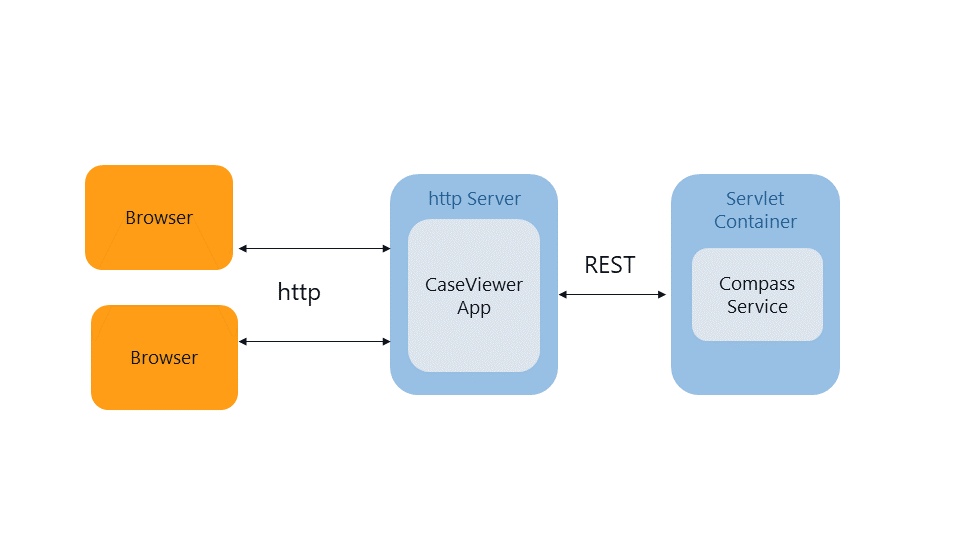
The following picture shows the communication between CompassService, the webServer(CaseViewerApp) and an internet browser:
Installation
CaseViewerApp comes as a compressed WAR file, which can be directly used in Servlet containers (such as Apache Tomcat), or otherwise need to be manually extracted to a webserver of your choice.
File Structure
| File / Directory | Description |
|---|---|
index.html |
The only HTML file. Every URL path must resolve to this file. When it’s opened, all styles and Angular runtime files (*.js) are loaded and Angular resolves the URL. Note that the "base href" needs to be set in this file if you use Tomcat. |
main.js (and others) |
Minified Angular files. Do not change the content of these! |
appConfig.json |
The main configuration file (see Configuration CaseViewerApp.) |
appConfig-override.json |
This file can be used to override properties from appConfig.json, without having to edit it. (See Configuration CaseViewerApp.) |
Configuration CaseViewerApp
CaseViewerApp’s configuration is located in appConfig.json. If you wish to change any of the properties, you may either
-
edit the file directly, or
-
(recommended) write the properties you wish to change with their new values into appConfig-override.json.
The json may look like this:
{
  "CompassService": "https://www.example.genre.com/CompassService/",
  "searchMaxResults": 100,
  "searchMinQuality": 900,
  "sb2InvalidInputConfirm": true,
  "maximumNumberOfYearsPast": 50,
  "maximumNumberOfYearsFuture": 50,
  "disableOverallResult": false,
  "hideDontAnswerButton": false,
  "baseHref": "/CaseViewerApp/",
  "idleTimeout": {
    "showDialogAfterMs": 1200000,
    "timerMs": 600000
  }
}
The properties are described here:
| Property Name | Type | Mandatory | Default | Description |
|---|---|---|---|---|
CompassService |
String |
yes |
|
URL to the COMPASS Service. |
debug |
true | false |
no |
(omitted) |
If true, error messages get displayed in the browser console. |
searchMaxResults |
Number (positive) |
no |
(omitted - App defaults to 300) |
Internal value which should not be changed. In case of performance problems, Gen Re might ask you to adapt this value. |
searchMinQuality |
Number (between 0 and 1000) |
no |
(omitted - App defaults to 300) |
A search result with a quality of 1000 is an exact match. If the minQuality is set too high, then the results might be too few. |
sb2InvalidInputConfirm |
true | false |
no |
false |
If true and, in SB2, the user made invalid inputs in the current page, shows a confirmation dialog before changing that page. |
maximumNumberOfYearsPast |
Number (positive) |
no |
100 |
In a date dialog, only allow dates beginning in the past from the current year minus this number. |
maximumNumberOfYearsFuture |
Number (positive) |
no |
100 |
In a date dialog, only allow dates starting from the current year plus this number. |
caseIdMax |
Number (positive) |
no |
20 |
Internal value which should not be changed. Maximum number of allowed characters a caseId should have. |
subIdMax |
Number (positive) |
no |
4 |
Internal value which should not be changed. Maximum number of allowed characters a subId should have. |
disableOverallResult |
true | false |
no |
false |
If true, hides a line that contains "Overall result" at the top of the assessment result page. |
hideDontAnswerButton |
true | false |
no |
false |
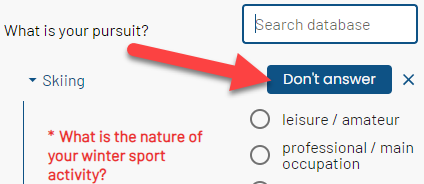
If true, hides the ability to click "Don’t answer" in capture.
|
baseHref |
String |
only relevant for Keycloak |
|
The name of the app. Keycloak uses this as the redirect URI. |
idleTimeout |
Nested object with two number properties |
only relevant for Keycloak |
|
When to show the "Session about to expire" dialog ("showDialogAfterMs") and how much time the user is given to react in the dialog. If this object is missing in appConfig.json, the dialog will never show up, and there will be no auto-logout after a period of inactivity. |
| Integration of CompassService with Keycloak is described in detail here: CompassService 6.2: Integration with Keycloak or CompassService 6.3: Integration with Keycloak. |
Capture app
Functionality of Capture app
Capture app offers the following services:
| service / operation | Description |
|---|---|
capture |
starts the risk data capturing process for one application |
Prerequisites
To deploy Capture app, you need:
-
A web server supporting the HTTP(S) - protocol
-
CompassService 6.2 (see CompassService 6.2 or CompassService 6.3).
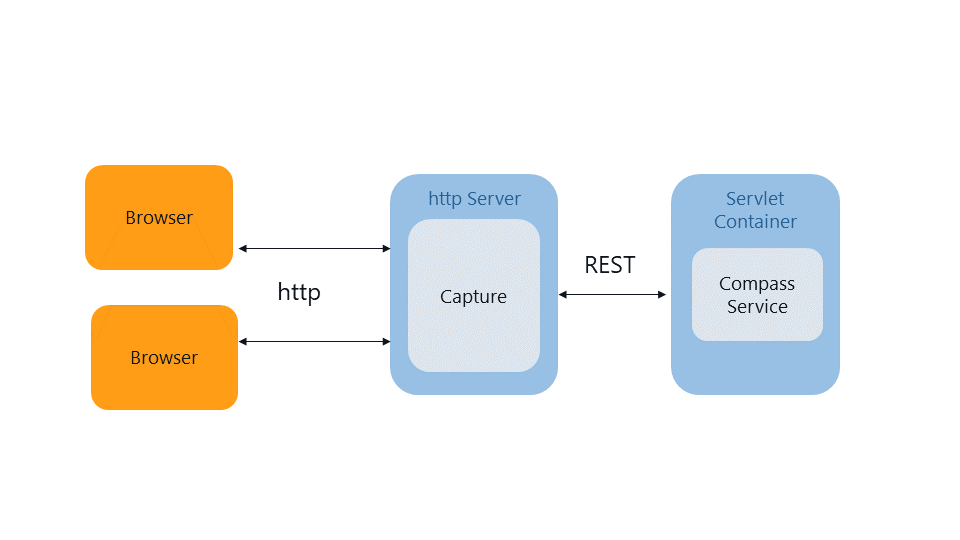
The following picture shows the communication between CompassService, the webServer(Capture) and an internet browser:
Installation
Capture app comes as a compressed WAR file, which can be directly used in Servlet containers (such as Apache Tomcat), or otherwise need to be manually extracted to a webserver of your choice.
File Structure
| File / Directory | Description |
|---|---|
index.html |
The only HTML file. Every URL path must resolve to this file. When it’s opened, all styles and Angular runtime files (*.js) are loaded and Angular resolves the URL. Note that the "base href" needs to be set in this file if you use Tomcat. |
main.js (and others) |
Minified Angular files. Do not change the content of these! |
appConfig.json |
The configuration file (see Configuration Capture app. |
Configuration Capture app
Capture app’s configuration is located in appConfig.json.
Below is an example:
{
  "CompassService": "http://localhost:8086/CompassService/",
  "searchMaxResults": 100,
  "searchMinQuality": 900,
  "sb2InvalidInputConfirm": true,
  "maximumNumberOfYearsPast": 50,
  "maximumNumberOfYearsFuture": 50,
  "hideDontAnswerButton": false,
  "redirectSuccess": "http://www.genre.com/capturesuccess.html?caseid={{caseId}}&subid={{subId}}&status={{status}}",
  "redirectError": "http://www.genre.com/captureerror.html?caseid={{caseId}}&subid={{subId}}&status={{status}}&error={{error}}"
}
The properties are described here:
| Property Name | Type | Mandatory | Default | Description |
|---|---|---|---|---|
CompassService |
String |
yes |
"http://localhost:8080/CompassService" |
URL to the COMPASS Service. |
debug |
true | false |
no |
(omitted) |
If true, error messages get displayed in the browser console. |
searchMaxResults |
Number (positive) |
no |
(omitted - App defaults to 300) |
Internal value which should not be changed. In case of performance problems, Gen Re might ask you to adapt this value. |
searchMinQuality |
Number (between 0 and 1000) |
no |
(omitted - App defaults to 300) |
A search result with a quality of 1000 is an exact match. If the minQuality is set too high, then the results might be too few. |
sb2InvalidInputConfirm |
true | false |
no |
false |
If true and, in SB2, the user made invalid inputs in the current page, shows a confirmation dialog before changing that page. |
maximumNumberOfYearsPast |
Number (positive) |
no |
100 |
In a date dialog, only allow dates beginning in the past from the current year minus this number. |
maximumNumberOfYearsFuture |
Number (positive) |
no |
100 |
In a date dialog, only allow dates starting from the current year plus this number. |
hideDontAnswerButton |
true | false |
no |
false |
If true, hides the ability to click "Don’t answer" in capture.
|
redirectError |
String |
no |
none |
Used in Capture-only variant of the app only. When the user exits from Capture (by finishing or aborting), redirect to this URL in case COMPASS throws an error. |
redirectSuccess |
String |
no |
none |
Used in Capture-only variant of the app only. When the user exits from Capture (by finishing or aborting), redirect to this URL in case COMPASS returns a successful OperationResult resulting in a status of 0 or 1. |
| When using Capture app, CompassService must be configured without authorization (see CompassService 6.2 or CompassService 6.3). |
Securing the URL
To prevent the URL of Capture app from being tampered with, the URL of CaseViewer app can be secured by an SHA3-256 hash.
To use this feature, CompassService must be configured accordingly.
However, CompassService can also be configured in such a way that Capture app does not require a timestamp / hash.
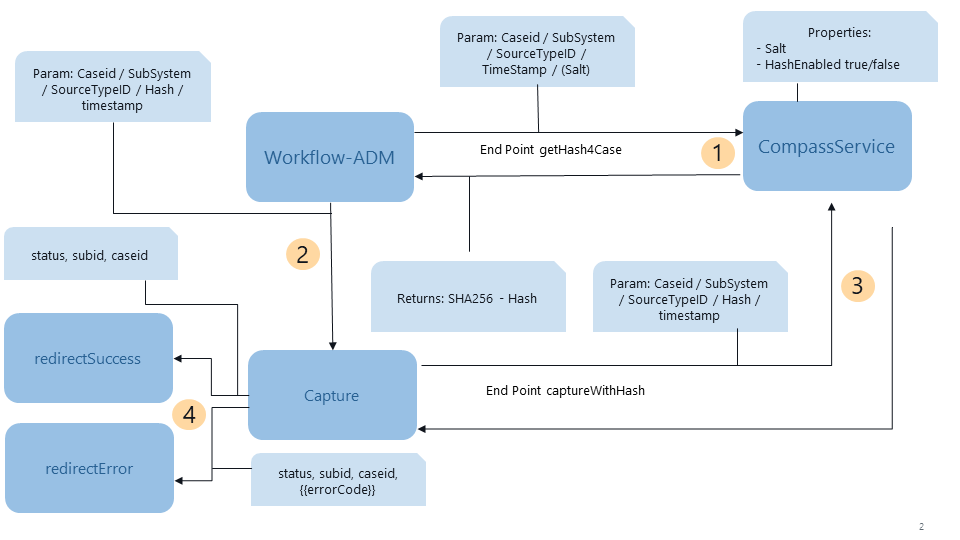
The workflow is depicted below.
Explanation:
-
The Workflow Administration Manager (Workflow ADM) calls the endpoint getHashForCase from CompassService (see CompassService.getHashForCase) to retrieve a SHA3-256 hash for the URL securing SubID, CaseID, SourceType and the timestamp.
The End Point will return the corresponding SHA3-256 hash (see step 1 in picture below).) For details about format of the URL and parameters, see Verfying the installation of Capture app .Details about End Points and their parameters -
The Workflow ADM creates a Case with the technical data and calls Capture app with the parameters subID, caseID, srcType, timestamp and hash (see step 2 in picture below).
-
Capture app will capture the case data and pass them to the backend CompassService (see step 3 in picture below)
-
When capturing is finished, Capture app will either call a pre-defined URL in case of an error (redirectError) or in case of success (redirectSuccess). Both calls are GET calls and contain the following parameters for further evaluation of the Workflow ADM (see step 4 in picture below):
| Parameter | Content |
|---|---|
status |
0 = OK |
subid |
the SubID of the case |
caseid |
the ID of the Case (CaseID) |
errorcodes |
a list of specific error codes |
1. Retrieving a hash from CompassService
Explanation of URL-format and parameters:
The URL of the End Point CompassService.getHashForCase has the following format:
[GET] http://[host]:[port]/CompassService/getHashForCase?subId=[subID]&caseId=[caseID]&srcType=[sourceType]×tamp=[timestamp]i.e.
http://localhost:8086/CompassService/getHashForCase?subId=DEMO&caseId=TEST_001&srctype=4×tamp=2023-12-11T08:08:07.336156900Z| Parameter Name | Explanation |
|---|---|
subID |
The SubID of the Case |
caseID |
The CaseID of the Case |
srcType |
The SourceType of the Case |
timeStamp |
A timestamp defining the exact time until the returning hash is valid. Format: YYYY-MM-DDThh:mm:ss.MMMµµµZ YYYY = Year |
After calling the End Point CompassService.getHashForCase, a JSON body containing potential error messages or - if no errors occurred - the SHA3-256 hash:
{
    "path": "/getHashForCase",
    "status": 0,
    "statusText": "OK",
    "errorDescriptions": [],
    "jsonContent": {
        "Hash": "a583c1fc473a82342e3b594d31b8fb8619374ab4b987a403c9f46762a21308c5"
    },
    "byteContent": null,
    "textContent": null
}
2. Calling Capture app with secured URL
After retrieving the hash for the parameters described above, Capture app can be called with the appropriate SubID, CaseID,SourceType, timestamp and hash.
|
Please note that the parameters must be exactly the same as used for the End Point CompassService.getHashForCase before (see above). |
For a description of the End Points and their parameters. see Verfying the installation of Capture app.
3. If you want to create your own SHA3-256 hash
If you want to use your own tools rather than the End Point CompassService.getHash4Case to create an SHA3-256 hash, you can do so.
Algorithm:
The SubID, CaseID, SourceType, the timestamp and a salt are concatenated as a String. The salt is defined in the configuration of CompassService (see CompassService 6.2: Security Related Properties or CompassService 6.3: Security Related Properties): This is necessary since the validity of the URL is validated by CompassService (not by Capture app).
Example:
| Parameter Name | Explanation |
|---|---|
subID |
DEMO |
caseID |
TEST001 |
srcType |
4 |
timestamp |
2023-12-11T08:08:07.336156900Z |
salt |
5r55/KpVpBSk1YIXDobP |
Resulting String to be hashed:
DEMOTEST00145r55/KpVpBSk1YIXDobP
SHA3-256-hash:
a583c1fc473a82342e3b594d31b8fb8619374ab4b987a403c9f46762a21308c5
Sample code (Java);
String toEncrypt = aSubID + aCaseID + sourceType + aTimestamp + salt;
String sha3Hex = new DigestUtils("SHA3-256").digestAsHex(toEncrypt);
Verifying the installation
After installing CompassService (see CompassService 6.2 or CompassService 6.3) and CaseViewerApp, we recommend a smoke test to verify the installation:
Verfying the installation of CaseViewerApp
Open a web browser and point it to the following URL:
http(s)://[host]:[port]/CaseViewerApp/index.htmlExample:
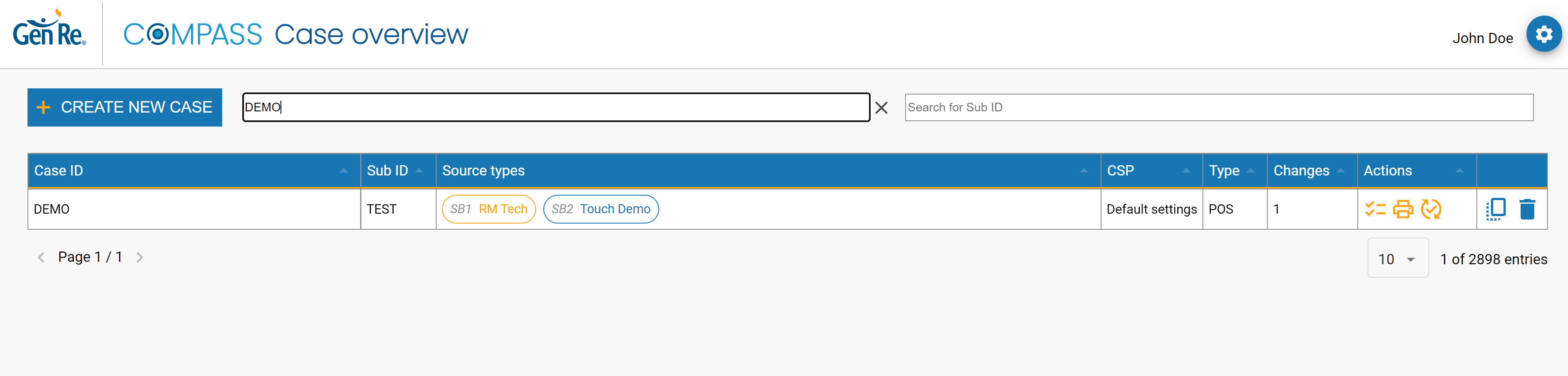
http://localhost:8080/CaseViewerApp/index.htmlCaseViewerApp should open and display a list of cases stored in the COMPASS case-tables:
Verfying the installation of Capture app
-
Ensure that the CaseID, SubID and SourceType exist. In this example, we’ll assume the CaseID "TEST_001", SubID "DEMO" and SourceType 4.
There are two different options to call Capture app:
For SourceTypes conforming to the Screenbuilder 2 - protocol (see Screenbuilder Introduction), the format is
http(s)://[host]:[port]/Capture/[SubID]/[CaseID]/[SourceType]/[Timestamp]/[Hash]/Example:
http://localhost:8080/Capture/DEMO/TEST_001/4/1/2023-10-05T09:18:47.938414600Z/52ed578bb62c6a054a3bcac834e28ee24671754452b59d8127697accdafe9783For SourceTypes conforming to the Screenbuilder 1 - protocol (see Screenbuilder Introduction), the format is
http(s)://[host]:[port]/Capture/sb1/[SubID]/[CaseID]/[SourceType]/[Timestamp]/[Hash]Example:
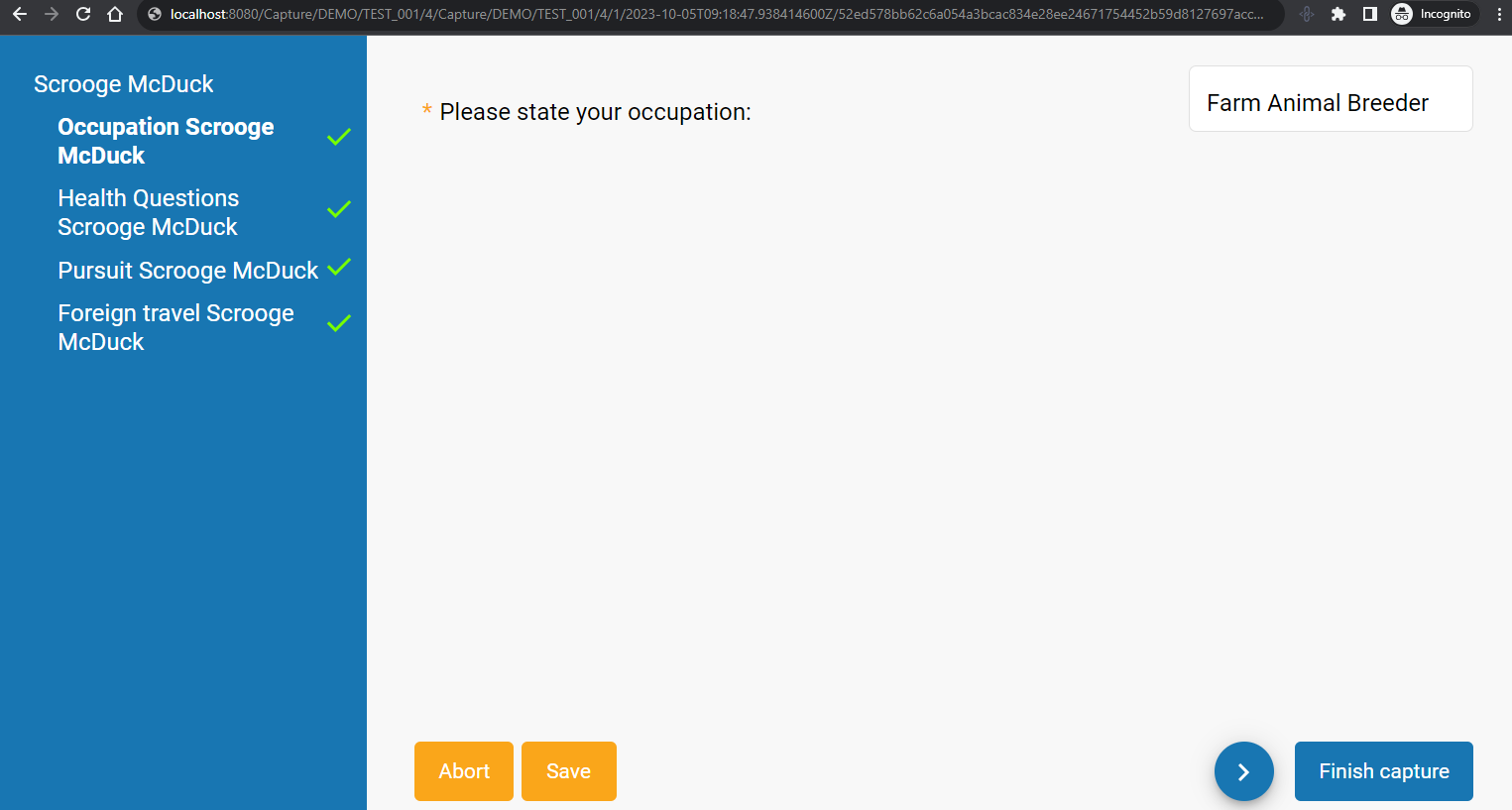
http://localhost:8080/Capture/sb1/DEMO/TEST_001/4/1/2023-10-05T09:18:47.938414600Z/52ed578bb62c6a054a3bcac834e28ee24671754452b59d8127697accdafe9783Capture app should open and display the starting screen to capture the data of the chosen case.
Format of the timestamp
The timestamp needs to be formatted as Zulu-Time (see Standard Date and Time Formats):
Syntax:
YYYY-MM-DDThh:mm:ss.MMMµµµZ
| String | Description |
|---|---|
YYYY |
Year |
MM |
Month |
DD |
Day |
T |
Separator |
hh |
Hour |
mm |
Minute |
ss |
Second |
MMM |
Millisecond |
µµµ |
Microsecond |
Z |
Indicator for Zulu time |
i.e.
2023-10-05T09:18:47.938414600Z
2023-10-05T09:18:47.000000000Z
Possible Errors if URL has wrong format
In case of an error, Capture app will redirect to the URL specified in the CompassService property redirectError containing status, SubID, CaseID, and error numbers as URL-parameters.
| Error | Error message |
|---|---|
576 |
Hash incorrect |
577 |
Timestamp expired |
578 |
Timestamp: Wrong format |
579 |
Hash missing |
580 |
Timestamp missing |
581 |
SubID missing |
582 |
CaseID missing |
583 |
SrcType no Integer |
584 |
GroupScreens missing |
Securing the End Points
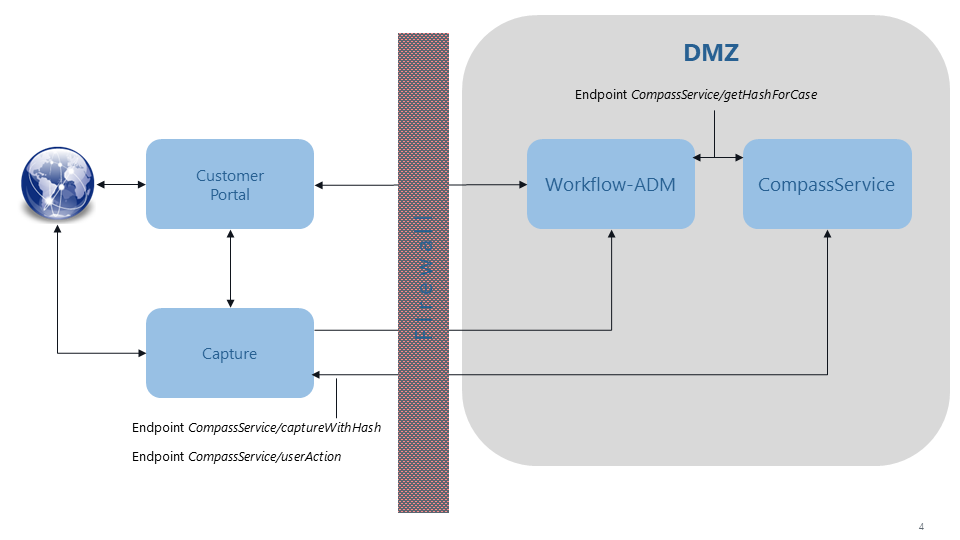
It’s obvious that all End Points of CompassService must not be exposed to the public Internet but remain in the DMZ or accept connections from dedicated IPs only. There are, however, two exceptions, as you can see in the picture below:
Since Capture app needs to communicate with the backend CompassService and resides on a web-server outside the DMZ, both the End Points CompassService.captureWithHash (which starts the capturing process) and CompassService.userAction (which accepts user input) need to be exposed; however, it is recommended to limit access to these End Points from outside the DMZ to Capture app and a possible customer portal only:
After exiting
When you exit from Capture (by finishing or aborting),
-
if both properties redirectSuccess / redirectError are specified in appConfig.json (see Configuration Capture app), you will be redirected to one of these exact URL.
-
both properties must be set and are mandatory properties.