Getting Started
COMPASS Version 6.2, 6.3, 6.4 © General Re Corporation 2021 - 2026. All Rights Reserved (created: 2025-11-17 generated: 2026-07-10)
| Please note that this document is still under revision, so slight changes still might occur before the final version of this draft. |
Introduction
COMPASS helps you capturing medical and other risk relevant information, and then assesses the life application. Applications are checked whether:
-
they are acceptable and the policy can be issued
-
the application has to be passed to human underwriting highlighting relevant details
-
further evidence is required for a complete underwriting (questionnaires, medical reports, etc.)
-
the application can be accepted under slightly modified conditions (exclusion clauses, loadings, deferred periods, etc.)
-
the application is to be declined
The assessment is based on rules that are stored in databases. At delivery COMPASS comprises market specific rules for occupations, disorders (ca. 14.000), pursuits, nationalities, drugs, etc. The insurance company can adapt these rules using the browser based COMPASS' RuleManager program. All country specific products/benefits from the life/health area are included. Further benefit types can be included into the system.
COMPASS can work as a standalone product, but will typically be integrated into the company’s workflow. The integration part is split into the
-
technical integration, starting with the installation of a standalone environment under Windows, to the call of COMPASS from the companies applications. The IT department is usually in charge of this part.
-
functional/professional integration, comprising the setup of assessment rules and the user interface for the capturing of the application data. Typically the underwriting department is involved in this step.
Besides giving an overview of COMPASS functionality, this document presents the different COMPASS components with their installation and configuration options, the architectural options, the integration possibilities, and refers to more detailed documentation when required. It is therefore aimed at the project members who will decide on an integration scenario, and the IT team and the underwriting team responsible for the integration. During some steps the IT- and the underwriting team will work closely together.
The most common questions that will be answered by this document are:
-
What is the architecture of COMPASS?
-
What are the first steps when starting work with COMPASS?
-
How can COMPASS be integrated into your environment?
-
What are the interfaces of COMPASS?
-
How to call COMPASS functionality from your applications
Scope of this document
From version 6 onwards COMPASS offers components based on REST services.
The existing/previous components are named legacy components throughout this document.
The following table shows the legacy API and components, together with the corresponding REST based equivalent side by side:
| Functionality | REST component ≥ 6.2 | Legacy component |
|---|---|---|
COMPASS engine |
CompassService |
COMPASS Server (RMI, Socket, JMS, etc) |
SB1 Client Application |
CaseViewerApp |
Swing Screenbuilder Client |
SB2 Client Application |
CaseViewerApp |
TouchClient (RMI) |
SB1+SB2 Client Application |
CaseViewerApp |
CaseViewer (REST) |
RuleManager |
RuleManagerApp / RuleManagerService (REST) |
RuleManager (Swing) |
API |
Gen Re strongly encourages the use of the REST based components.
Therefore this document focuses on the REST components, their architecture, and their installation and configuration guides.
The legacy components are still supported with version 6.x, and their documentation is available on request in PDF format.
Terminology
While working with COMPASS, the following terms are of importance:
System/Sub-System
A system is a set of data comprising assessment rules, application forms and cases. This set of data will be stored in a database. Cases are the applications as recorded by COMPASS. For every case an assessment Result can be created by COMPASS. Cases and Results are stored separately from the assessment rules. Cases and Results of one system can be subdivided into subsystems. Every company can customize its subsystems, e.g. grouping cases by departments, or by single users.
Services and Communication
The COMPASS engine offers different services like search, capture application data, assess an application, application print, or the display of the assessment result.
All these services are described in detail here: REST APIs.
Besides the legacy communication, COMPASS now communicates via REST and uses the HTTP protocol for communication (see Architecture of COMPASS).
ScreenBuilder-Interface
The capturing of application data is a main service from COMPASS: COMPASS creates descriptions of screens (in the so called ScreenBuilder-Interface format), which are being visualised by the clients. Thus the screen description is separated from its visualisation, which enables company specific creation of screens. COMPASS includes a reference implementation of the Screenbuilder functionality: CaseViewerApp, an Angular based web-app providing functions like capture, assess, print, delete and copy of applications. More information about the Screenbuilder 2 - interface can be obtained here: Screenbuilder 2.0.
Architecture of COMPASS
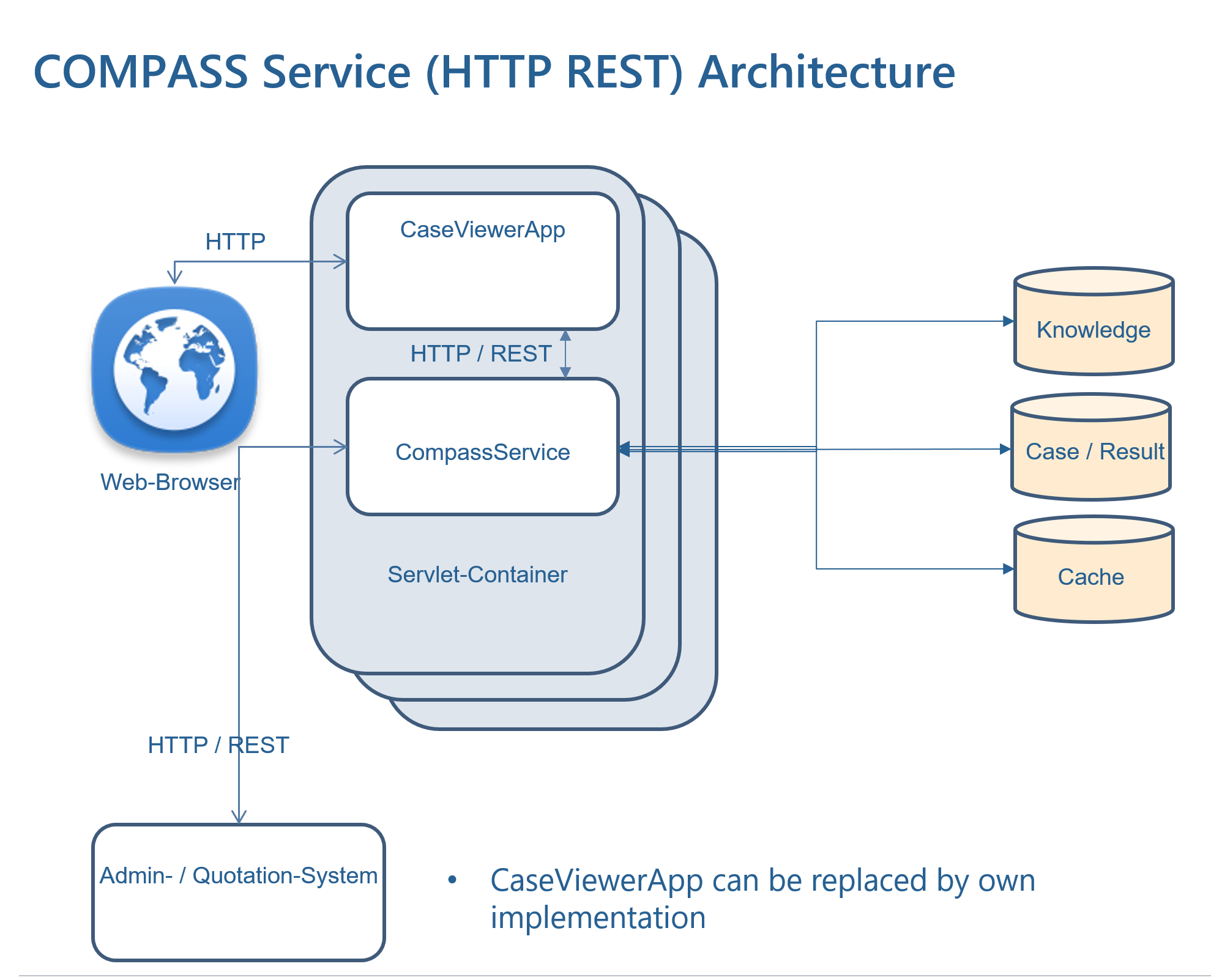
COMPASS is a REST based application, which consists of 4 main components:
-
COMPASS Service
This component is the COMPASS' engine. It provides REST-based services (HTTP) to be consumed by the client Apps.
E.g. it is responsible for processing clients’ requests like assess a case, search for the term "astma", etc. (see CompassService 6.2 or CompassService 6.3). -
COMPASS Client applications
Every application that requests services from COMPASS Service needs to be a REST client. COMPASS comprises an example client called CaseViewerApp. This client can be used to capture application data, assess a case, and show/print the assessment result. -
Databases
A set of data that contains the rules that are used for the assessment of a case. This data is stored in tables of a relational database system. More information about setting up the database can be found in the chapter Database. -
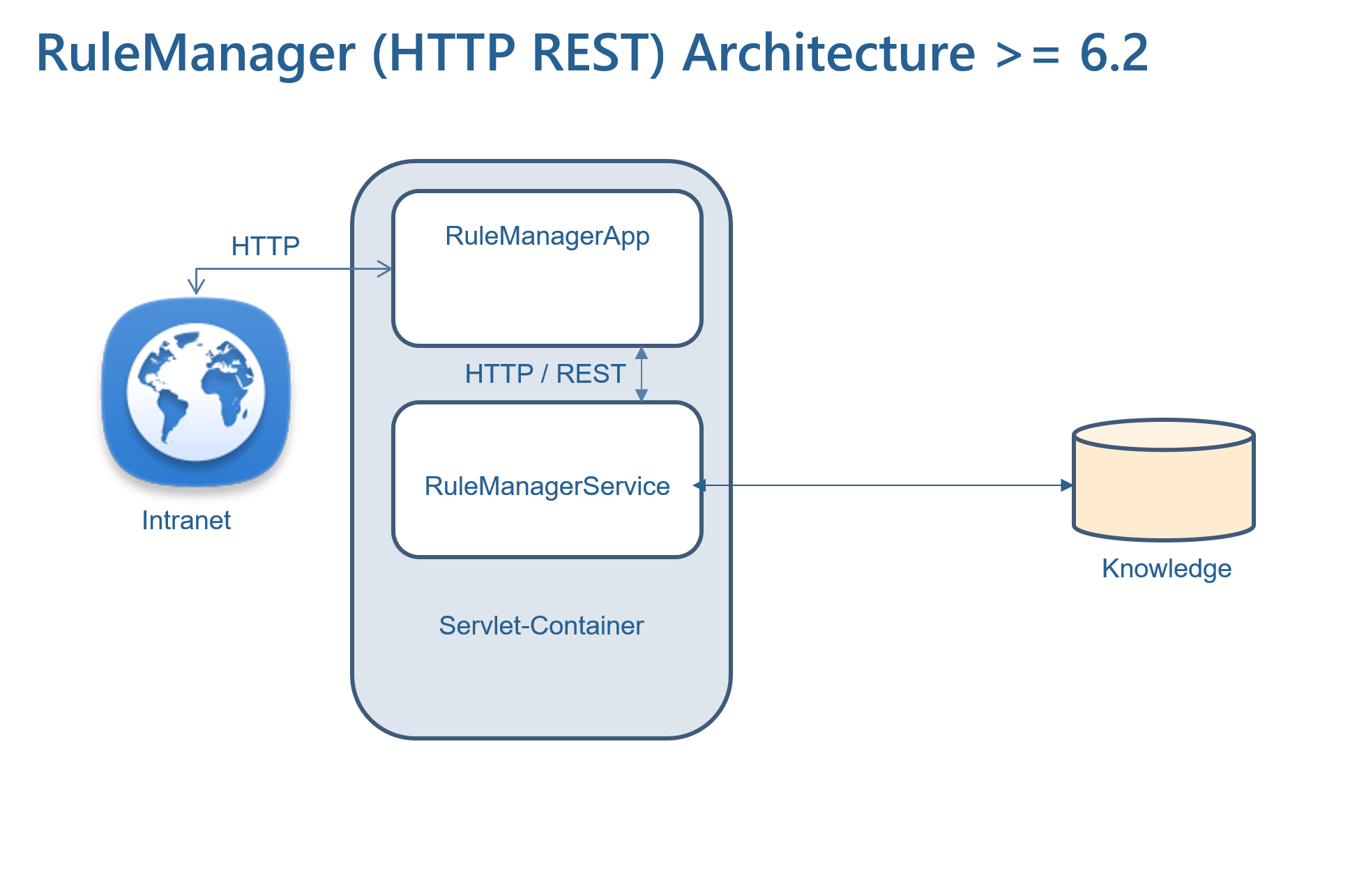
COMPASS RuleManagerApp / RuleManagerService
COMPASS includes the web-based RuleManagerApp to edit and create assessment rules (see RuleManagerApp 6.2 or RuleManagerApp 6.3). RuleManagerApp is an Angular frontend. It communicates via REST with the backend component RuleManagerService (see RuleManagerService 6.2 or RuleManagerService 6.3).
Below the different architecture scenarios are shown:
CompassService: (please be advised that Authentication / Authorization is not part of the diagram - for more information see Authorization-Server 6.2 or Authorization-Server 6.3, CompassService 6.2: Integration with Keycloak or CompassService 6.3: Integration with Keycloak and RuleManagerService 6.2: Integration with Keycloak or RuleManagerService 6.3: Integration with Keycloak.
With RuleManagerApp, assessment-rules can be edited. The application is an Angular based web app. RuleManagerApp can be deployed in any HTTP server or Servlet Container. The app will communicate with RuleManagerService, a Servlet providing the necessary services. Since COMPASS version 6.2, RuleManagerService has been separated from CompassService and is provided as its own service. This scenario is depicted in the diagram below. Please be advised that Authentication / Authorization is not part of the diagram.
Installation
The following activities are necessary for the installation and a first verification of COMPASS.
-
Set up the database, see Database
-
Install and start the COMPASS service, see or CompassService 6.3, CaseViewerApp In a production environment, customers will most likely create their own clients that communicate with the CompassService.
-
If you want to run RuleManagerApp and you’re running COMPASS from on version 6.2, you will also need to install RuleManagerService (see RuleManagerApp 6.2 or RuleManagerApp 6.3 and RuleManagerService 6.2 or RuleManagerService 6.3.
-
-
Connect with a client (either CaseViewerApp or any other Screenbuilder Client). In case you are installing RuleManagerApp, also fire up RuleManagerApp for a smoke test.
Requirements
The following requirements are mandatory for all installations of COMPASS, unless mentioned otherwise.
Java Servlet Container
As COMPASS' backends are a Java based Servlets, COMPASS needs a Servlet Container (i.e. Apache Tomcat) running on a Java VM 1.8.x or better and complies at least to Servlet Specification 3.0.
JDK / JRE
Below is a table showing compatibility of each component with the different version of Java Development Kits (JDK) or Java Runtime Environment (JRE):
| Component | Java 8 | Java 11 | Java 17 |
|---|---|---|---|
CompassServer |
- |
6.2 |
6.3+ |
CompassService |
- |
6.2 |
6.3+ |
RuleManagerService |
- |
6.2 |
6.3+ |
Keycloak (20.0.1+) |
x |
x |
x |
Authorization |
x |
6.2 |
6.3+ |
| CaseViewerApp and RuleManagerApp are Angular-based applications. They are regularly updated to the latest Angular version. Since they are running in a browser, a browser supporting the latest Angular version is required (i.e. latest version of Chrome / Chromium). |
Database
All assessment rules, case and result information are stored in an SQL database. COMPASS accesses this database via means of a JDBC driver. Please make sure that the database system of your choice has a JDBC driver available. We recommend registering the JDBC driver within your Servlet Container.
All common database systems like Oracle, Sybase, MS SQL Server, MySQL or DB2/UDB having a JDBC driver available are therefore supported.
For detailed information about installing and configuring the database, please refer to the document Database .
The data stored in the databases can be split into 3 groups:
-
knowledge data: contains the assessment rules and screen resembling the application form, and
-
case data: contains cases and results.
-
cache data: contains cached input from clients.
For each system, a set of 11 tables has to be created that will contain the knowledge data. These 11 tables have to be accessible via the same JDBC database access string (see below), i.e. they have to be located in the same database instance and be accessible with the same rights for the same set of users.
The case data is stored in 3 tables that can be located even on another database system / instance, but all 3 tables should also be accessible via the same JDBC access string (see below).
Cache-data is stored in one table.
During the first installation, we recommend to install the tables for all environments into the same database instance and leave the table-names with their default values. In a production environment, a separation of the Knowledge data from the Case - / Cache - data might be reasonable.
The database-connection can be setup in two ways, either as a JDBC Datasource or as a pure JDBC-connection.
Please refer to the document Database for a detailed explanation of the tables, the DDL, and loading of Knowledge data shipped to customers into these tables.
Scope of delivery
The standard delivery includes the following components:
-
CaseViewerApp - a Client to capture and process application data
-
CompassService - the Rule-Engine, backend for CaseViewerApp and every COMPASS REST client
-
RuleManagerApp - a rule- and screen-description-editor
-
RuleManagerService - backend for RuleManagerApp
-
Data with the assessment recommendations of Gen Re for your market/country as tab-separated value file
-
Documentation is available online
Services (CompassService and RuleManagerService are Java Servlets which need to be deployed into a Servlet Container. CaseViewerApp and RuleManagerApp are Angular based apps and can be deployed either in a Servlet Container or any other HTTP server.
CompassService
Once the database has been installed (see Database) and data files loaded into the tables, CompassService may be deployed into your favourite Servlet Container.
Please refer to the installation instructions in the document CompassService 6.2 Installation or CompassService 6.3 Installation.
You can test the successful installation of CompassService by calling the version-service of CompassService with the following URL:
http://[host]:[port]/CompassService/versionExample:
http://localhost:8080/CompassService/version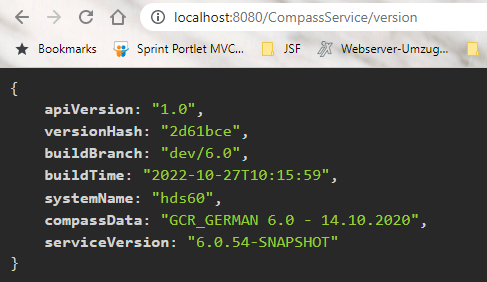
CaseViewerApp
After the database and CompassService are properly installed, CaseViewerApp can be deployed into your Servlet Container / HTTP Server.
Please refer to the installation / configuration / usage instructions of CaseViewerApp in the document CaseViewerApp Installation.
You can test the installation of CaseViewerApp by calling the following URL:
http://[host]:[port]/CompassCaseViewer/#!adminExample:
http://localhost:8080/CompassCaseViewer/#!admin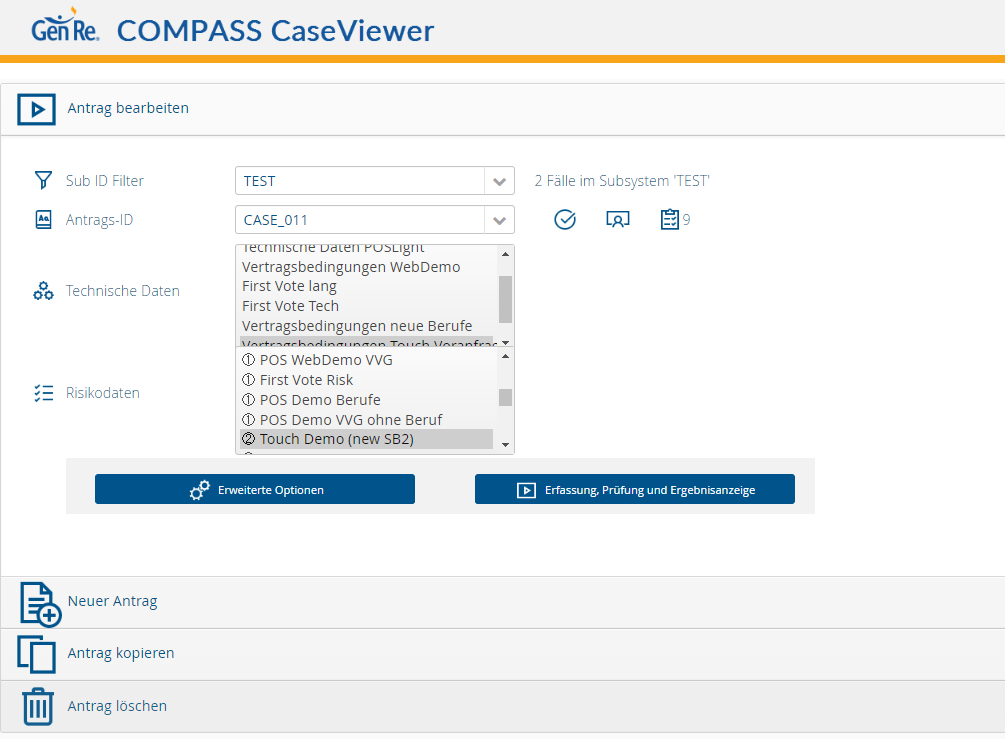
RuleManagerApp
After the database and RuleManagerService are properly installed, RuleManagerApp can be deployed into your HTTP Server. Since RuleManagerApp is an Angular based application, it may be deployed inside a Servlet Container, however, a pure HTTP server will be sufficient.
Please refer to the installation / configuration / usage instructions of RuleManagerApp 6.2 or RuleManagerApp 6.3 and RuleManagerService 6.2 or RuleManagerService 6.3.
You can test the installation of RuleManagerApp by calling the following URL:
http://[host]:[port]/RuleManagerApp/homePlease note that upon initial delivery, RuleManagerService has one configured user (you may add new ones and remove the existing test-user).
Credentials of the pre-configured test-user:
User: userone
Password: userone
Example:
http://localhost:8080//RuleManagerApp/home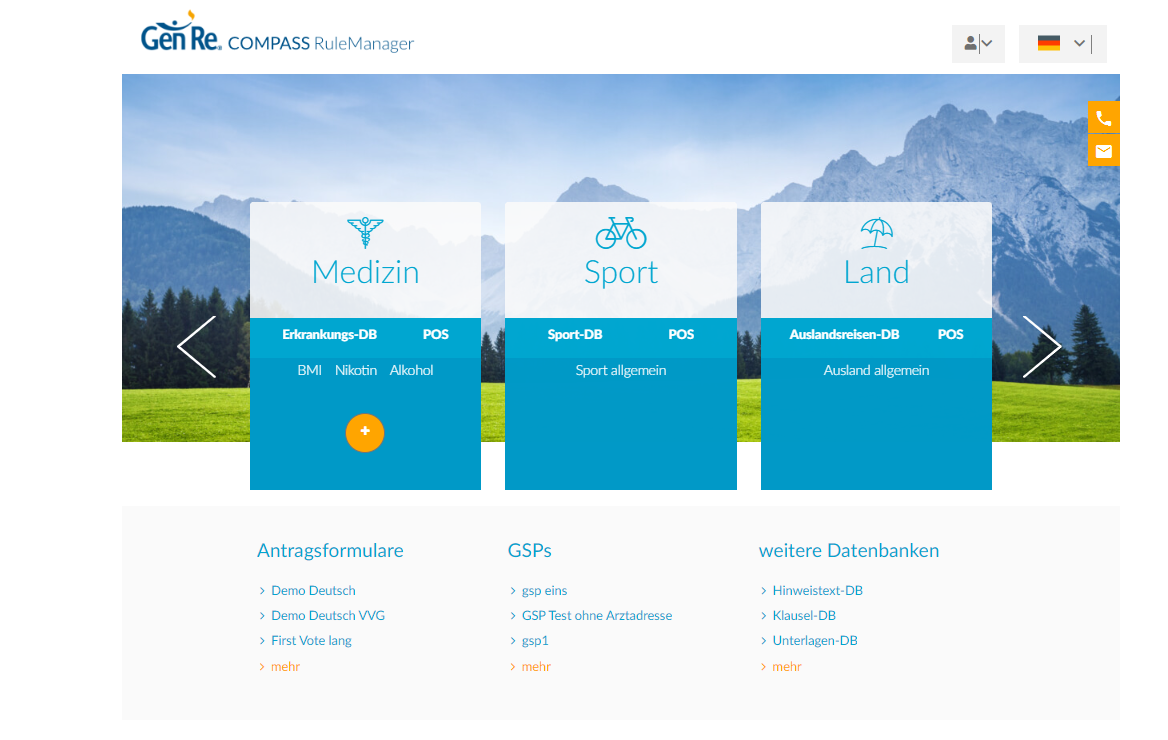
Integration
The integration of COMPASS into your company consists of two main parts: the underwriting and the technical integration parts. The technical part consists of activating COMPASS from company specific programs, creating the Input Interface (see Input Interface) to COMPASS and evaluating the Result Interface (see Result Interface) of COMPASS. Usually, the Information Technology department is responsible for this part. The underwriting part consists of mainly reviewing and modifying the underwriting rules of COMPASS, so that they will reflect the underwriting philosophy of the company.
As a first step, the underwriting and IT departments need to gain sufficient knowledge of COMPASS so that a project plan for the integration can be sketched. This chapter deals with the different options offered by COMPASS and therefore is important for the project.
Underwriting
At least one underwriter needs to be responsible for the review of the assessment rules in the database. When necessary, the underwriter(s) update the assessment rules via RuleManagerApp (see RuleManager). The scope of rules at the delivery is described in the document Knowledge Description
The underwriting department is also responsible for the definition of the application form as a set of screens. RuleManagerApp includes the User-Interface Editor that allows the definition of the screens. The definition of the application form should be one of the first tasks of the integration. After defining the screens for the application form, the IT department will build an Input Interface based on those screen definitions.
In case dynamic Point Of Sale questionnaires should be used for capturing additional data (which is the most common scenario), these questionnaires can be defined or modified by the underwriter using the POS-Editor (see also the documents POS Description Medical, POS Description Non Medical and POS Description Occupation).
Gen Re recommends that the underwriting team should also have access to an assessment environment (e.g. CaseViewerApp and RuleManagerApp), so that the modification of screens or rules can be verified directly.
Technical Integration
The technical integration largely depends on the decision which services of COMPASS are required, and how they should be activated. Together with the underwriting department, the scope of information passed to COMPASS has to be defined, and then an Input Interface containing this information has to be created. After the assessment, the Result Interface has to be retrieved and analyzed, and the underwriting department will define the information that should be stored in your systems or presented to the underwriters.
Below the technical process is depicted:
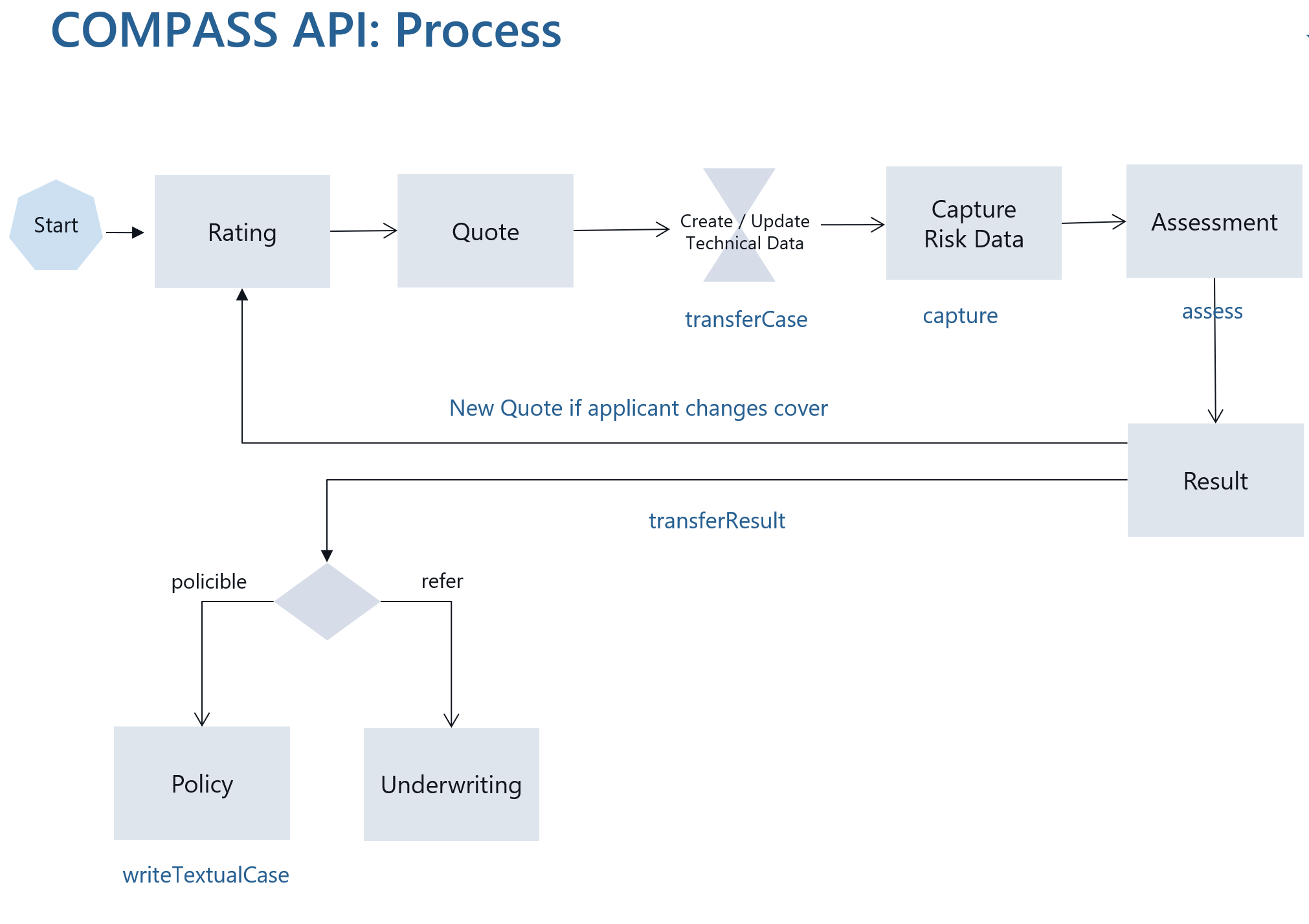
We recommend starting as early as possible with the technical integration. Please refer to Installation for a description on how to test the installation: install the components and test the system by deploying and configuring CompassService, CaseViewerApp, RuleManagerService and RuleManagerApp.
For detailed information about Input Interface and Result-Interface please refer to the documents Input Interface, Result Interface. As an alternative to the Result Interface, you might want to take a look at New Result Interface, which now has a hierarchical structure rather than a network graph structure, thus making it easier to parse and analyze the assessment result.
Input- and Result-Interface
Two of the most important questions during the integration phase are “How do I pass application information to COMPASS?” and “How do I extract the information I need from the information returned by COMPASS?”. The answers are: Passing application data to COMPASS via the Input Interface, and by retrieving assessment results through the Result Interface, which needs to be parsed for the exact assessment result and its attributes. Both interfaces may be encoded either as XML dor JSON (please do note that when a Case is passed to COMPASS, the interface needs to be encoded as XML - this is one of the few restrictions where the JSON format is not supported - see transferCaseToDBXML.
Input Interface
The Input Interface needs to be created first, containing the Technical Data.
Technical Data, such as name of applicant, sum insured, tariff etc. need to be passed programmatically by the corresponding COMPASS service (see REST APIs - transferCaseXML). This data is usually created after a quote has been created from which the Technical Data can be derived. When an Input Interface has been built, the structure can be verified with the following procedure:
-
Check the correct syntax of the interface („well formed“ XML).
-
Once CompassService is deployed and started,, use your preferred REST-Editor and send your Input Interface as a payload to CompassService using the API REST APIs - transferCaseXML.
-
COMPASS has built-in Swagger-support (see https://swagger.io/), so you can fire up Swagger from within COMPASS by calling the following URL (please be advices that Swagger endpoints are only available with security disabled):
http://[host]:[port]/CompassService/api.htmlExample:
http://localhost:8080/CompassService/api.htmlInstead of Swagger, you may also use your preferred REST-editor such as Postman (https://www.postman.com) or SoapUI https://www.soapui.org/)
-
Check the return code of the REST call (should always be 0) indicating that no error occurred.
-
When the Input Interface could be read by COMPASS, fire up CaseViewer and check the proper content of the fields you passed to COMPASS.
Result Interface
The Result may be retrieved either as an XML- or JSON document. It contains all relevant information about the Assessment Result of a Case, including reasons for the decision. Underwriting department and the application developers have to decide together which information from the Result should be extracted, and how this information should be displayed or processed.
Besides the XML / JSON representation of the Assessment Result, COMPASS offers a service that creates an HTML document with selected Result information. Have a look at REST APIs - printResult
The result interface is described in detail in the document Result, including how to proceed with the analysis of the interface to retrieve the desired information.
COMPASS also includes the New Result Interface as an alternative to the Result interface described above: Benefits are its pure hierarchical structure which for the developer is easier to parse and handle. More information can be found in the document New Result.